
Managing your integrations
View, reconnect, or remove your connected services.
The integrations page gives you an overview of all connected services and lets you add, configure, or remove them.
View your integrations
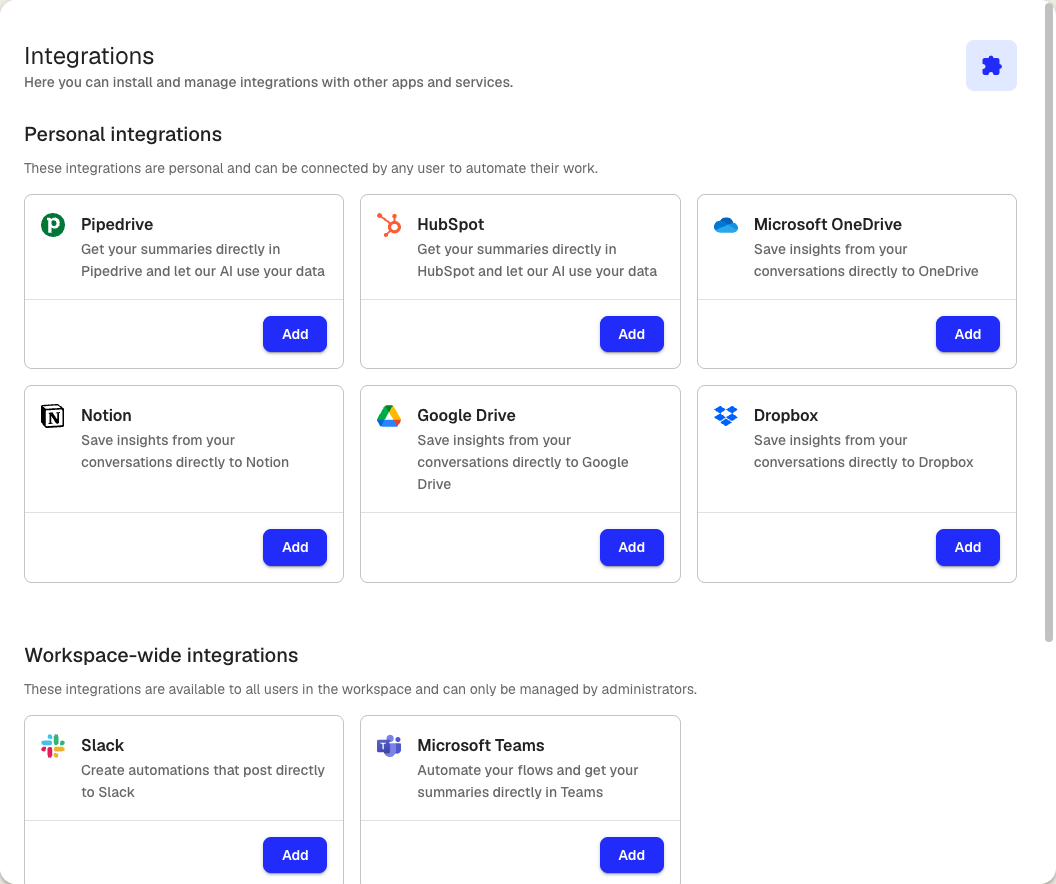
The page is divided into two sections:
- Personal integrations — Services you connect for your own account. Any workspace member can add these. Available services include Google Drive, OneDrive, Dropbox, Slack, Notion, Pipedrive, and HubSpot.
- Workspace integrations — Services that apply to all workspace members, such as Microsoft Teams. Only admins can add or remove these.
Each integration card shows a status badge: Active when connected, or no badge when not yet set up.
Add an integration
- On the integrations page, find the service you want
- Click Add
- Review the permissions Klang needs and click Approve
- Sign in with the service and grant access
After connecting, Klang may ask if you want to set up a flow for the new integration. You can do this now or skip and create one later from the Flows page.
Configure integration settings
Some integrations have additional settings. If available, a Settings button appears on the integration card after connecting.
- Click Settings on the integration card
- Adjust the options (for example, default Slack channel or Notion database)
- Save your changes
Remove an integration
- On the integrations page, click Remove on the integration you want to disconnect
- Confirm in the dialog
Removing an integration stops any flow nodes that depend on it. Review your active flows before disconnecting.
Workspace integrations
Workspace integrations are available to all members but can only be managed by admins. If you are not an admin, the card shows a message to contact your admin.
To add a workspace integration as an admin:
- On the integrations page, scroll to the Workspace section
- Click Add next to the service
- Complete the authorization
Workspace integrations like Microsoft Teams may require additional setup steps, such as installing a bot or granting admin consent in your organization’s admin portal.
Was this article helpful?
Your feedback helps us improve our documentation.
Suggested Articles

Need more help?
Our support team is here to help you.