Workspace security settings
Admin controls for 2FA, sign-in methods, sessions, and features.
Workspace admins can set who is allowed to sign in to the workspace, how, and for how long. These settings live at Settings → Workspace → Security and only admins can see them.
Changes here apply to every member of the workspace. Members are not signed out until they next reload.
Require two-factor authentication
Force every member to enable 2FA on their account.
- Turn on Require two-factor authentication
Any member who does not have 2FA is signed out and asked to set it up before they can use Klang again. A progress bar below the toggle shows how many members already have 2FA, and a list flags the members who are missing it.
Allowed sign-in methods
Choose which methods new members can use to sign in. At least one method must stay active.
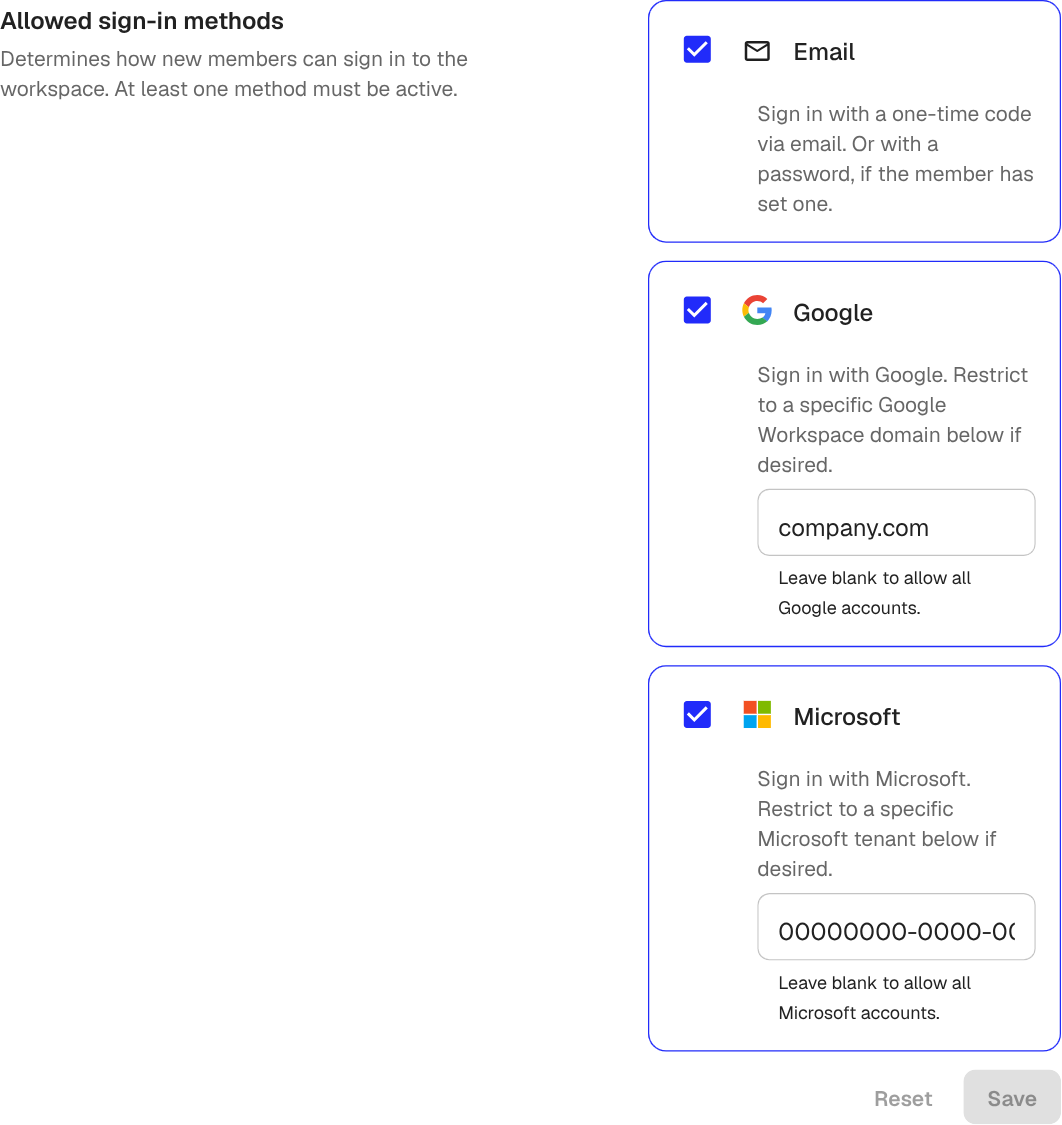
- Email: a one-time code sent to the member’s email. The member can also set a password to skip the code
- Google: Sign in with Google. To accept only your company’s Google Workspace, enter your domain (for example,
company.com) in Allowed Google Workspace domain - Microsoft: Sign in with Microsoft. To accept only your tenant, enter the tenant GUID or domain in Allowed Microsoft tenant
Leave the restriction fields blank to allow any Google or Microsoft account.
After changing the options, click Save.
Session duration
Choose how long a member can stay signed in before they must sign in again.
- Turn off Use default (30 days)
- Pick a custom duration
- Click Save
Shorter durations are useful for shared devices or stricter security policies. Longer durations reduce how often members must sign in.
Feature toggles
The Features section lets you turn off entire areas of Klang for the workspace:
- Integrations: lets members connect services such as Google Drive, Microsoft Teams, and Zoom
- Calendar sync: lets members turn on calendar sync for their own account. Turning this on does not sync any calendars automatically: each member still has to enable it themselves
- Automatic download of voice recorder recordings: when on, the voice recorder also saves a local copy on the member’s device when they upload, as a safety net in case the upload fails. Turn this off to skip the local download
These toggles take effect immediately. Members see the affected pages disappear from settings the next time they reload.
Was this article helpful?
Your feedback helps us improve our documentation.
Suggested Articles
Need more help?
Our support team is here to help you.