Custom analysis templates
Preconfigure analyses with your own prompts, instructions, and knowledge sources.
Available on the Team plan .
A custom analysis is a preconfigured agent with its own instructions, knowledge sources, and prompts. When you start a new analysis from a custom analysis, all of that is filled in automatically, so your team can run the same kind of analysis consistently without rebuilding it each time.
Custom analyses are useful when you run similar analyses repeatedly. For example, a weekly meeting summary with a fixed output structure, an interview analysis that always checks the same themes, or a report generator that relies on a shared knowledge base.
Who can create custom analyses
Custom analyses are available on the Team plan. Only workspace admins can create, edit, and delete them. All members can use them.
Creating a custom analysis
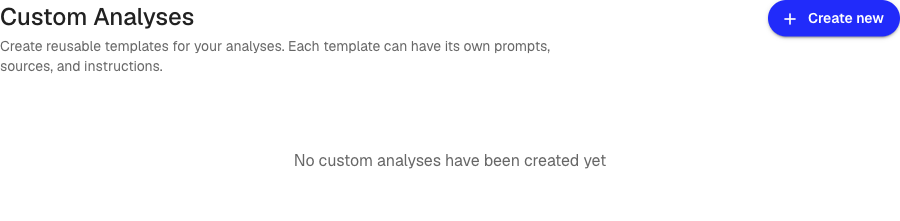
- In the sidebar, expand Custom Analyses and click the + row, or open Custom Analyses from the sidebar section and click Create new
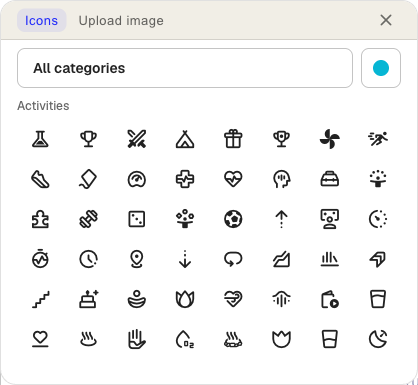
- Click the icon at the top to pick an icon and color, or upload your own image
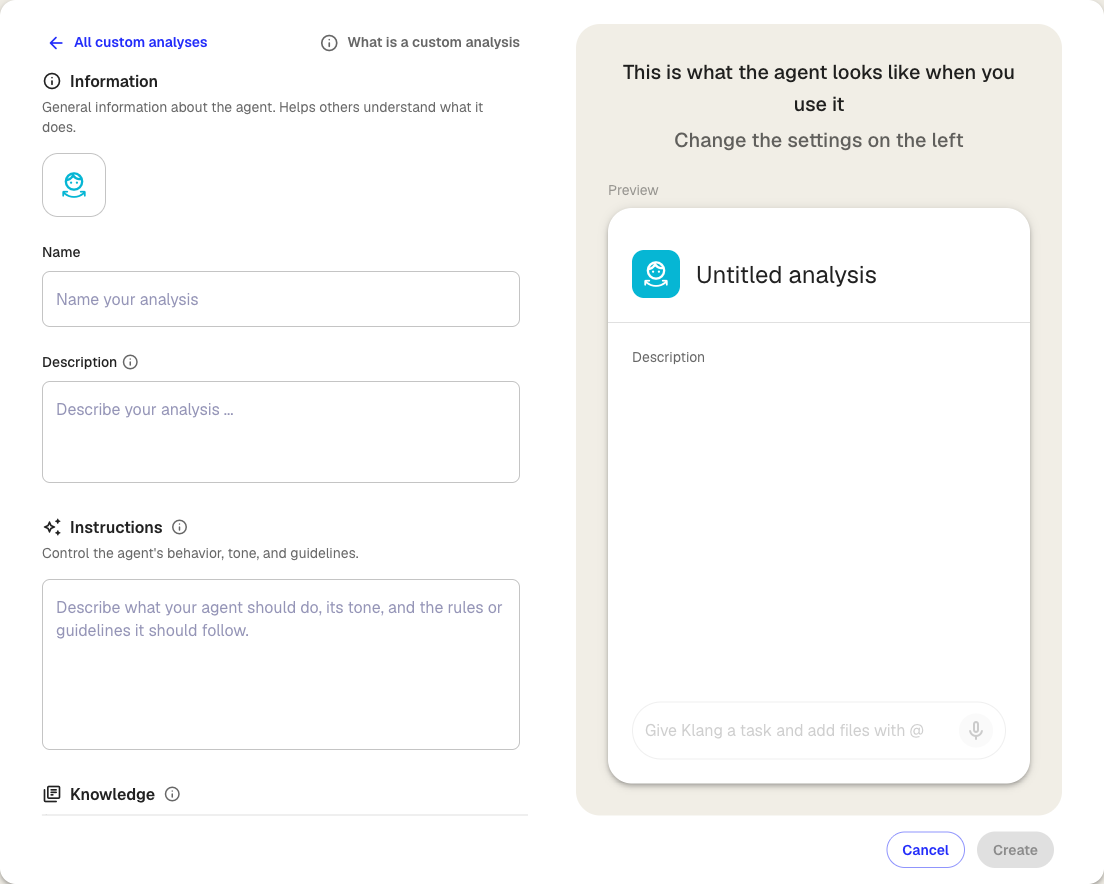
- Under Information, enter a Name and a Description so your team knows what the custom analysis is for
- Under Instructions, describe the agent’s purpose, tone, and any rules it should follow when generating answers
- Under Knowledge, drop files onto the From your computer area, or select them to upload. Knowledge files are always available to the agent, in every analysis created from this custom analysis
- Under Prompts, click Create new to write a new prompt, or click Prompt library to import prompts saved elsewhere in your workspace. Prompts appear as preset questions inside the analysis
- Click Save
The custom analysis appears in the sidebar under Custom Analyses and is ready to use by anyone in your workspace.
Using a custom analysis
Start a new analysis from a custom analysis in one of two ways:
- From the sidebar: In the Custom Analyses section, click the custom analysis you want to use. A new analysis opens immediately with the instructions, knowledge, and prompts applied
- From the home page: Custom analyses appear as suggestion cards. Click a card to create a new analysis from that custom analysis
Either way, the instructions, prompts, and knowledge are copied into the new analysis. Add your sources (transcripts, files, documents, web pages) and run the prompts. You can edit or add anything inside the analysis without affecting the custom analysis itself.
Editing a custom analysis
Changes to a custom analysis affect every future analysis created from it, but not analyses that have already been created.
- Open the custom analysis from Custom Analyses
- Edit the fields you want to change. Edit or delete prompts with the icons that appear when you hover a prompt
- Click Save
If you try to leave with unsaved changes, Klang asks whether to stay or discard.
Deleting a custom analysis
Open the custom analysis and click Delete in the top-right corner. Analyses that have already been created from it are not affected.
Was this article helpful?
Your feedback helps us improve our documentation.
Suggested Articles
Need more help?
Our support team is here to help you.