Creating an analysis
Combine sources and use AI to extract insights, summaries, and answers.
An analysis is where you bring sources together and use AI to answer questions about them. Add transcripts, files, documents, web pages, and pasted text, then run prompts or chat with the agent to extract summaries, key points, and answers.
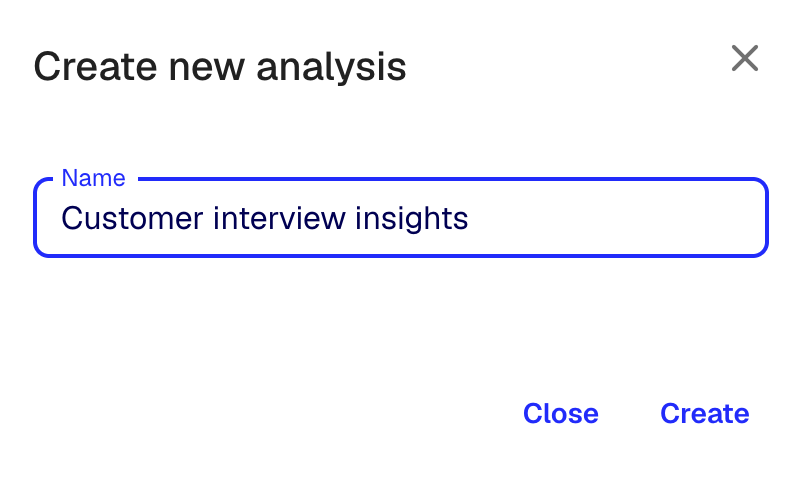
Create a new analysis
There are two ways to start an analysis:
- From a folder: Click New, then New analysis
- From a custom analysis (Team plan only): In the sidebar, under Custom Analyses, click the one you want to use
Either of these opens a new analysis.
A fresh analysis has a name, a sources list on the left, and a chat view in the middle.
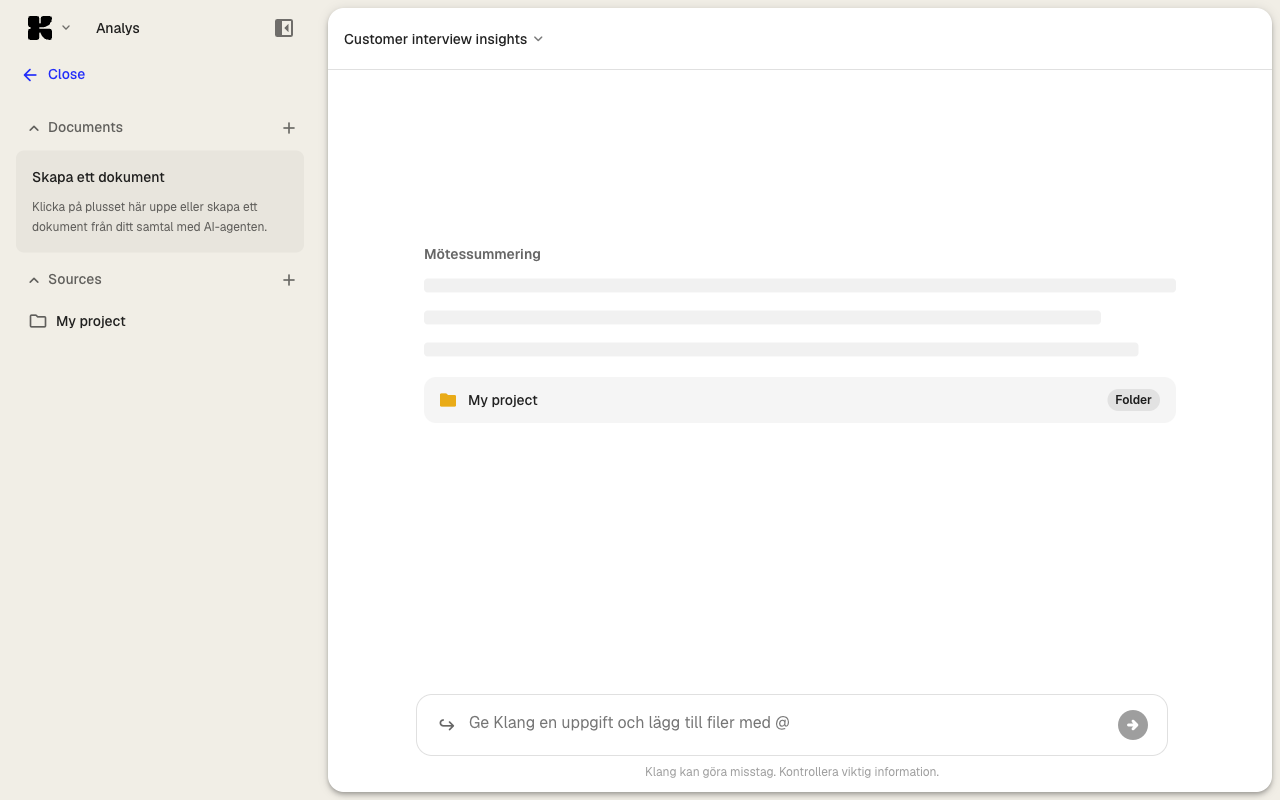
Add your first source
- In the sources list, click Add new source
- Pick how you want to add the source:
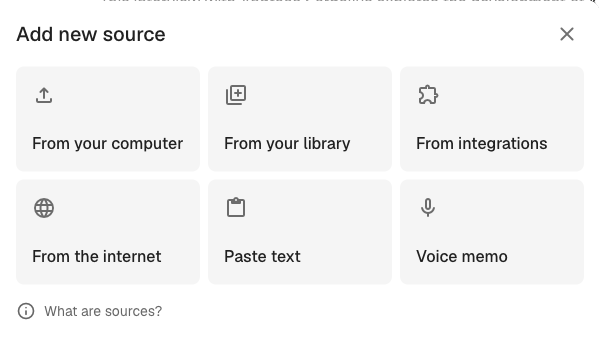
- From your computer: Upload a file from your device
- From your library: Pick from content already in Klang
- From integrations: Browse connected services like Google Drive or OneDrive
- From the internet: Paste a web page URL
- Paste text: Paste plain text
- Voice memo: Record audio in the browser
- Follow the steps for the option you chose
The source appears in the list. Audio, video, and files process in the background. The agent can use the source as soon as it is ready.
For a full walkthrough of each option, see Adding sources to an analysis.
Ask your first question
Type a question into the chat input at the bottom of the analysis. The agent reads the sources you have added and answers, citing the exact source and time code where it found the information.
For example:
- “Summarize all decisions made in this meeting”
- “What risks did the customer mention?”
- “List the action items and who is responsible”
Press Enter to send. The response streams in, with inline citations that link back to the source.
Run preset prompts
Analyses created from a custom analysis come with preset prompts you can run in one click. These are useful for repeatable output like a meeting summary or an interview analysis. Click a prompt to run it. You can also write your own prompts and save them to your prompt library.
Save results as a document
The agent’s answers live in the chat. To keep one as an editable document you can share, click Save as document on the message. The document opens in the editor, and you can refine it, export it, or share it with a teammate.
Next steps
- Adding sources to an analysis for every way to bring content in
- Custom analysis templates to preconfigure reusable analyses
- Scheduled analyses to run analyses automatically on a recurring schedule
Was this article helpful?
Your feedback helps us improve our documentation.
Suggested Articles
Custom analysis templates
Preconfigure analyses with your own prompts, instructions, and knowledge sources.
Analyzing multiple files in one analysis
Combine several transcripts, documents, or recordings in the same analysis.
Scheduled analyses
Run the same analysis automatically on new content in your folders.
Need more help?
Our support team is here to help you.