Signing in with multiple workspaces
Pick which workspace to sign in to when you belong to more than one.
If you belong to more than one workspace, Klang asks which one to use before showing the password or SSO step. This keeps your data in each workspace separate.
Pick a workspace at sign-in
- Go to app.klang.ai
- Enter your email and click Continue with email
- Choose the workspace you want to sign in to
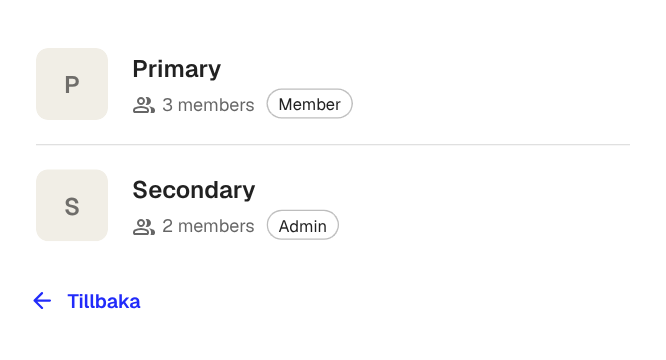
Each row shows the workspace name, the number of members, and your role (Member or Admin). After you pick one, the sign-in flow continues with the method allowed by that workspace.
If you only belong to one workspace, the picker is skipped and Klang goes straight to the sign-in method.
Switch workspaces after signing in
You can switch to a different workspace at any time without signing out:
- In the top-left corner, click the Klang button to open the menu
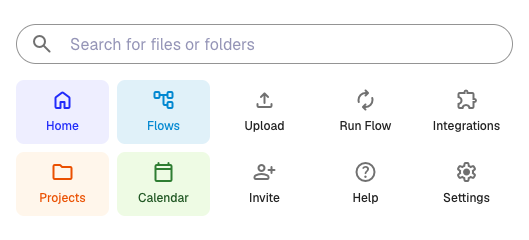
- Click Switch workspace
- Choose the workspace you want
You stay signed in. Klang reloads to show that workspace’s content.
Each workspace is separate
When you switch workspaces, Klang shows only the meetings, files, folders, and members of that workspace. Settings such as integrations, 2FA, and your sign-in method are tied to your account, so they carry over.
The workspace admin in each workspace controls its own sign-in methods, session length, and feature toggles. That means signing in to Workspace A may use Google SSO while Workspace B uses email and a one-time code.
Was this article helpful?
Your feedback helps us improve our documentation.
Suggested Articles
Need more help?
Our support team is here to help you.