Connecting your calendar
Sync your Google or Outlook calendar to automatically record and transcribe meetings.
How to connect your calendar
- In the sidebar, click the Calendar tab
- Click Google Calendar or Outlook Calendar
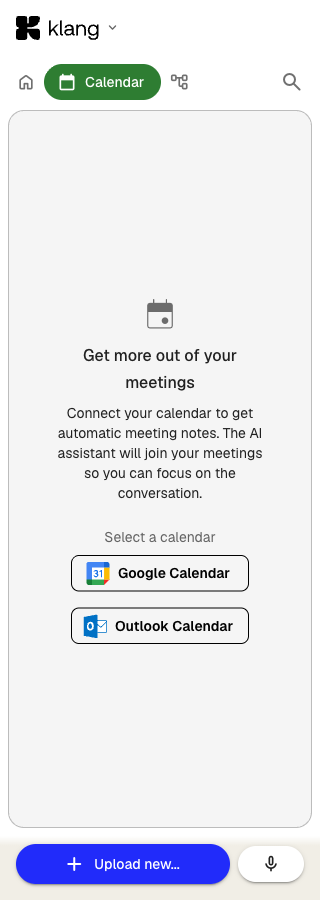
- Sign in with your Google or Microsoft account and grant Klang access to read your calendar events
After connecting, your upcoming meetings appear in the Calendar tab, grouped by day. A status dot and your account email confirm the calendar is connected.
How automatic recording works
Once your calendar is connected, Klang’s AI assistant can automatically join and record your video meetings. It supports Google Meet, Microsoft Teams, and Zoom.
To choose which meetings the assistant joins, open the Calendar tab and click the settings icon next to your connected account. Pick one of these options:
- Join all meetings: The assistant joins every meeting on your calendar
- Join all accepted meetings: Only meetings you have accepted
- Join all meetings you organize: Only meetings where you are the organizer
- Do not join any meetings: Turns off automatic recording
You can also toggle individual meetings on or off from the list. Use the All and Recording filter tabs above the list to switch between every meeting and only the ones Klang will record.
Per-meeting settings
To change settings for a specific meeting, click the meeting in the Calendar tab. You can override:
- Language: The transcription language for that meeting
- Folder: Where to save the recording
- Speaker identification: Whether to identify speakers from the participant list (turn off for hybrid meetings)
- Append date to filename: Adds the meeting date to the file name
For recurring meetings, you can apply changes to a single occurrence or the entire series.
Calendar invitations (alternative method)
If you prefer not to connect your calendar directly, you can use a calendar email address instead. Open the Klang menu from the top-left logo, click Settings, then go to My account → Calendar invitations to find your unique Klang email address. Forward calendar invitations to this address, and Klang will automatically join and record those meetings.
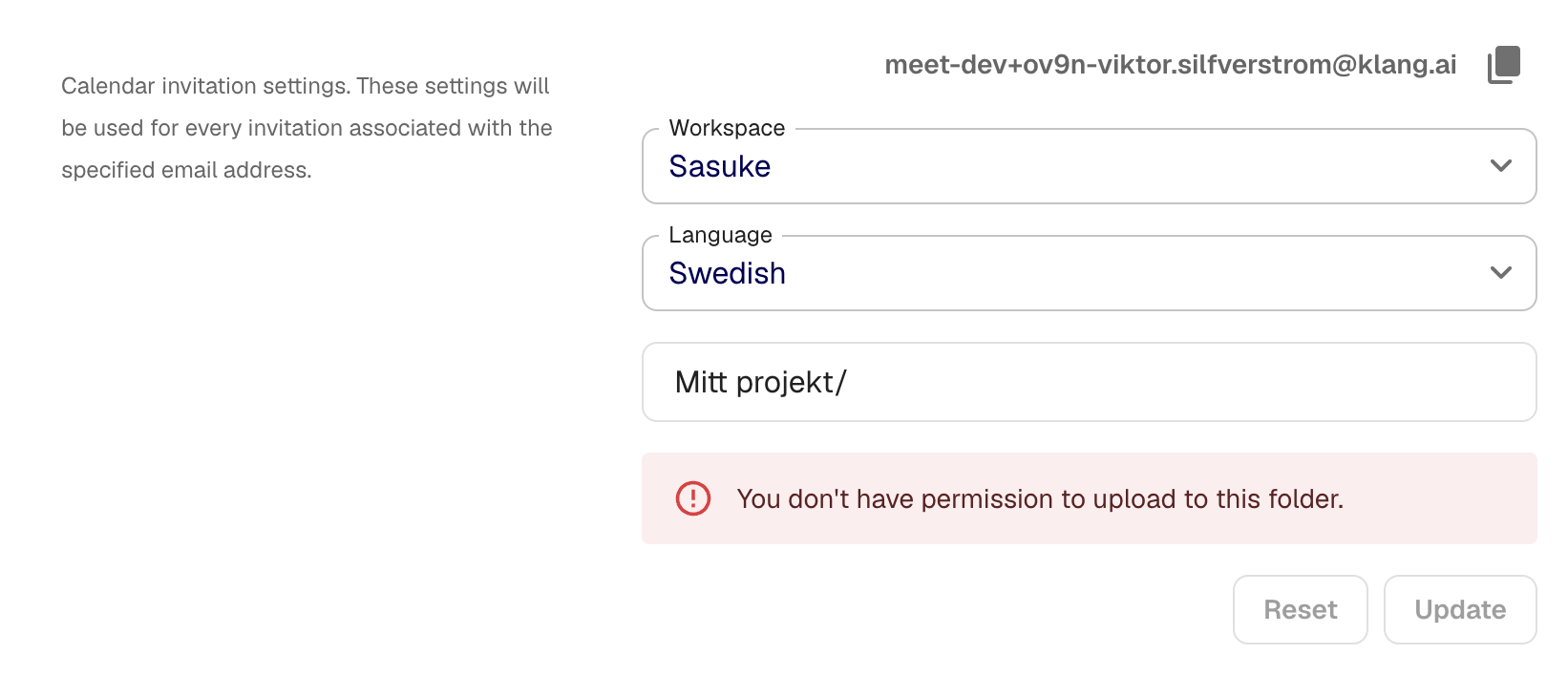
You can configure the default workspace, language, and folder for meetings received via calendar email.
Disconnecting your calendar
Open the Calendar tab in the sidebar, click the settings icon next to your connected account, and click Disconnect.
Was this article helpful?
Your feedback helps us improve our documentation.
Suggested Articles
Need more help?
Our support team is here to help you.