Editing a transcription and replaying audio
Review, edit, and fine-tune a transcription before you use the text further.
When a transcription is ready you can fine-tune it before using the text further. Klang links every word to the audio, so you can double-check what was actually said.
Play and read at the same time
Click play in the audio bar at the bottom of the transcript to hear the recording. The text scrolls with the audio so you never lose your place, and the active segment is highlighted.
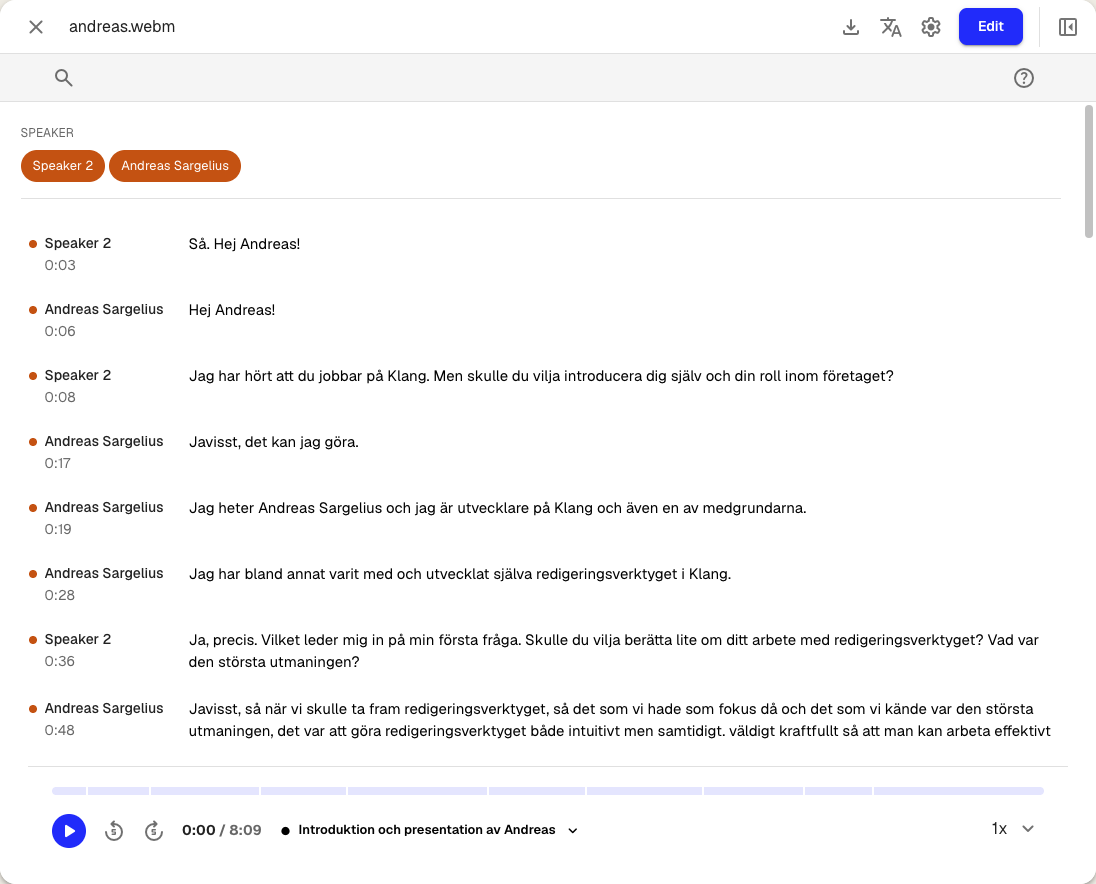
Use the speed selector on the right to play back faster or slower, and the skip buttons to jump five seconds back or forward.
Jump between topics
Klang breaks the recording into topics with timestamps. Click the topic name in the middle of the audio player to see the full list.
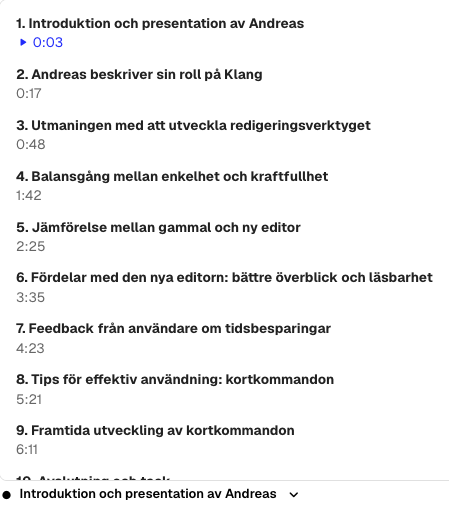
Click any topic to jump straight to that point in the recording.
Rename speakers
Click a speaker name at the top of any segment to rename it. For details and other speaker actions, see Managing speakers in a transcript.
Edit the text
- In the top-right corner, click Edit. The transcript switches to edit mode and a toolbar appears at the top
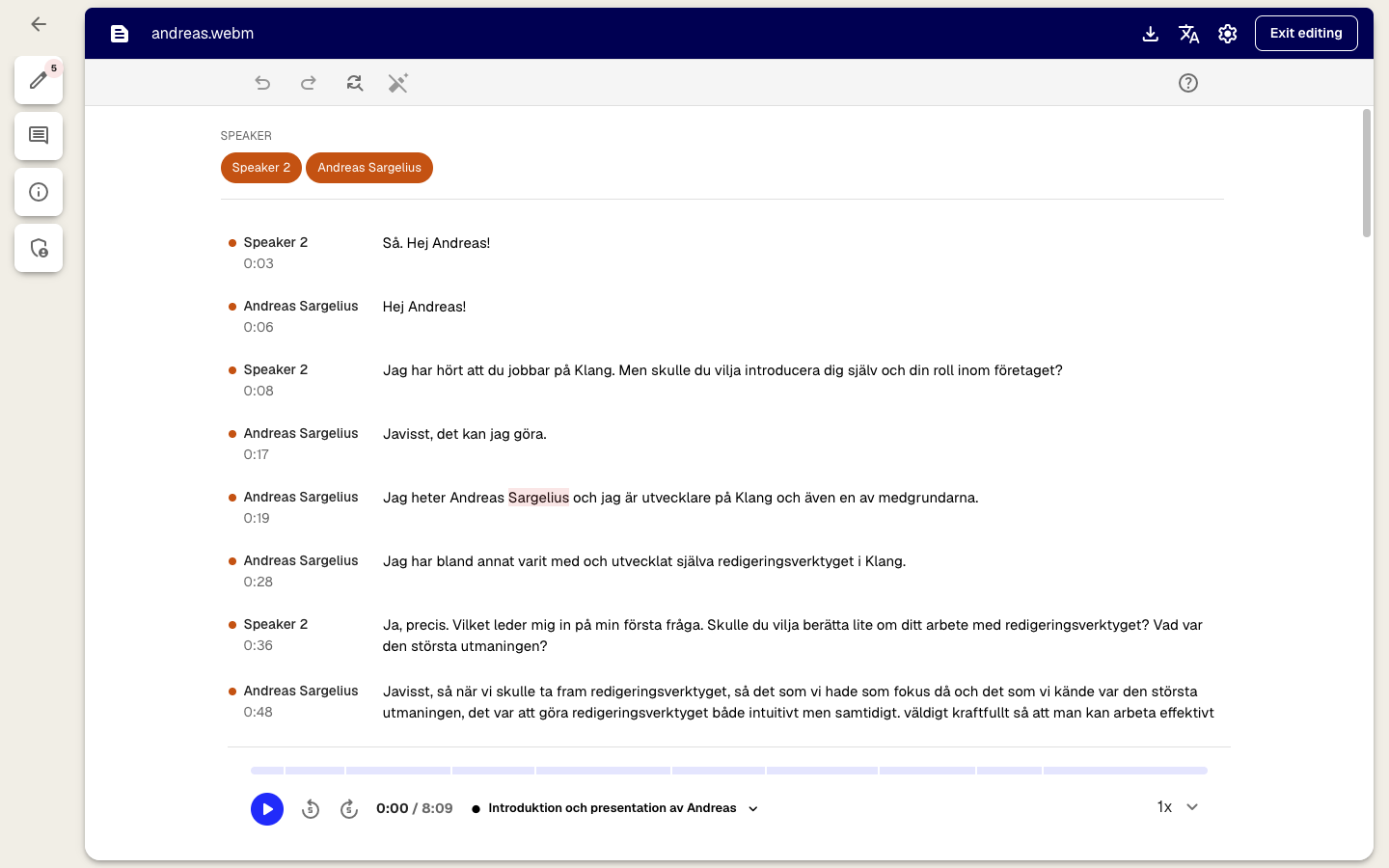
- Click any segment to place the cursor and type to correct the text
- Use the undo and redo icons in the toolbar to step backwards or forwards through your changes
- Click the find_replace icon to search for a word across the transcript and replace it
- When you are finished, click Exit editing in the top-right corner. Changes are saved automatically
Review suggested changes
While transcribing, Klang flags words it is unsure about. Open the edit icon in the left sidebar to see all suggestions in one place, each with a confidence percentage.
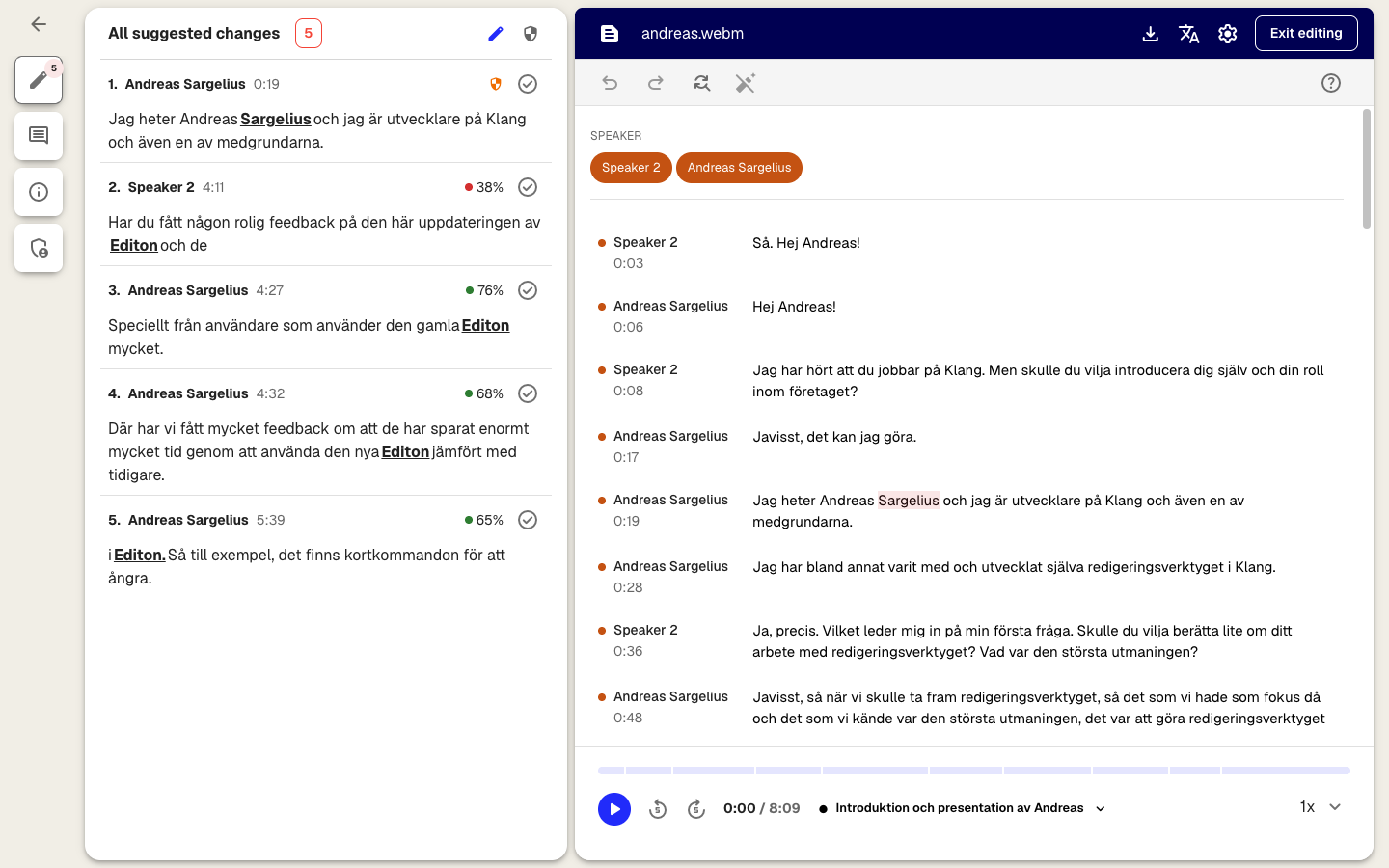
- Click a suggestion to jump to that segment in the transcript
- Double-click to play the audio around the word so you can hear what was said
- Click the check icon on a suggestion to accept it, or edit the text inline and the suggestion clears
Lower percentages (in red) mean Klang is less sure. These are the ones most worth checking.
Add a comment
Select a word or phrase in the transcript and click the comment icon that appears, or open the comment tab in the left sidebar to write a standalone note. Comments stay with the segment they were added to.
Was this article helpful?
Your feedback helps us improve our documentation.
Suggested Articles
Custom analysis templates
Preconfigure analyses with your own prompts, instructions, and knowledge sources.
Creating an analysis
Combine sources and use AI to extract insights, summaries, and answers.
Analyzing multiple files in one analysis
Combine several transcripts, documents, or recordings in the same analysis.
Need more help?
Our support team is here to help you.