Scheduled analyses
Run the same analysis automatically on new content in your folders.
Available on the Pro and Team plans .
A scheduled analysis runs the same prompt automatically on new content in the folders you choose, on a schedule you set. Each run creates a new analysis with the results, so you get a fresh report every day or every week without having to start it yourself.
Scheduled analyses are useful when you want a recurring output from a growing stream of content. For example, a weekly summary of customer meetings, a daily briefing of new intake interviews, or a weekly rollup of incident reports.
Creating a scheduled analysis
- In the sidebar, expand Scheduled analyses and click the + row, or open the Scheduled analyses page and click New scheduled analysis
- Pick a starter template from the suggestion cards, or click Create your own for a blank schedule
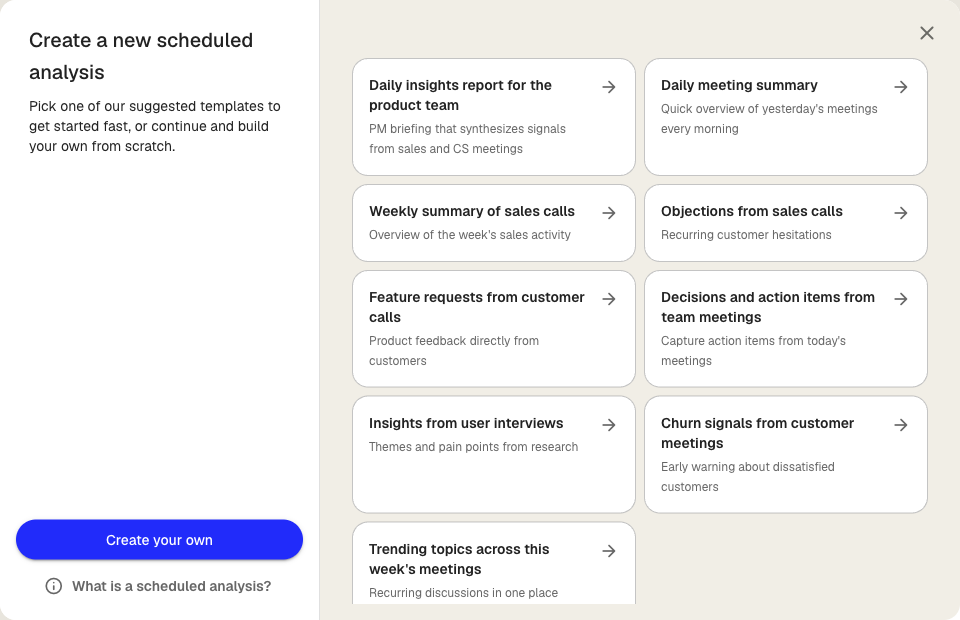
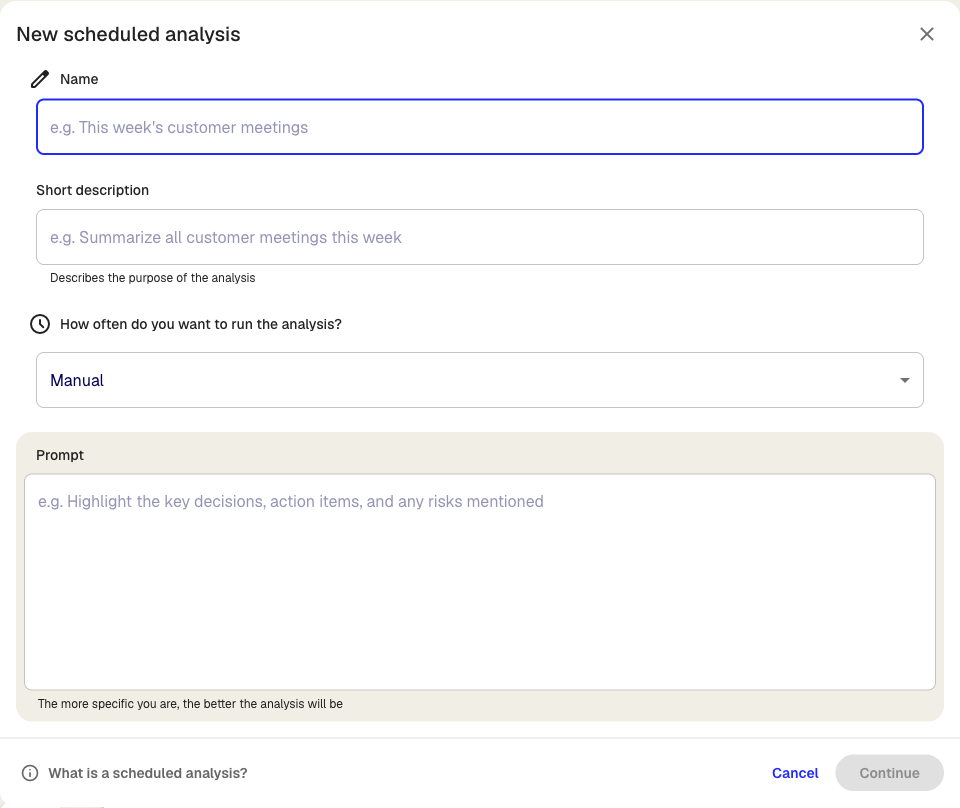
- Enter a Name and a short description so your team knows what the schedule is for
- Choose how often the analysis should run: Manual, Daily, Weekdays, or Weekly. For daily or weekly schedules, set the time (and weekday for weekly)
- Write the Prompt the analysis should run. The more specific you are, the better the output
- Click Continue to go to the second step
- Under Monitor specific folders, pick the folders the schedule should watch. The analysis runs on transcripts added to these folders since the previous run
- Optional: Under Save results to, choose where the generated analyses should land. If you don’t pick a folder, results go to the Other folder
- Click Create
The schedule appears in the sidebar under Scheduled analyses and starts running at the next scheduled time.
How a run works
When the schedule fires, Klang collects all transcripts that were added to the watched folders since the last successful run. It creates a new analysis named after the schedule (with the date appended), attaches those transcripts as sources, and runs the prompt. The result is saved to the target folder.
If there is no new content since the last run, the schedule skips that tick and tries again at the next one. Runs that fail to attach any sources do not advance the window, so the next run picks up the same material and retries.
Editing or pausing a schedule
Expand Scheduled analyses in the sidebar and click the schedule you want to change. You can edit the name, prompt, frequency, watched folders, and target folder. Pausing a schedule stops future runs but keeps the configuration and earlier results.
Running a schedule manually
Set the frequency to Manual if you want the schedule to exist but only run when you trigger it. This is useful for one-click reports you want to reuse without committing to a recurring cadence.
Was this article helpful?
Your feedback helps us improve our documentation.
Suggested Articles
Custom analysis templates
Preconfigure analyses with your own prompts, instructions, and knowledge sources.
Creating an analysis
Combine sources and use AI to extract insights, summaries, and answers.
Analyzing multiple files in one analysis
Combine several transcripts, documents, or recordings in the same analysis.
Need more help?
Our support team is here to help you.