Managing webhooks
Send events from Klang to your own systems over HTTP.
Available on the Pro and Team plans .
Webhooks send events from Klang to your own server. Use them to update a CRM, post to a chat tool, or kick off any process when a meeting finishes processing.
Webhooks are personal. Each webhook belongs to one user and only receives events for content that user has access to.

Create a webhook
- Open Settings → Developers → Webhooks
- Click Create webhook
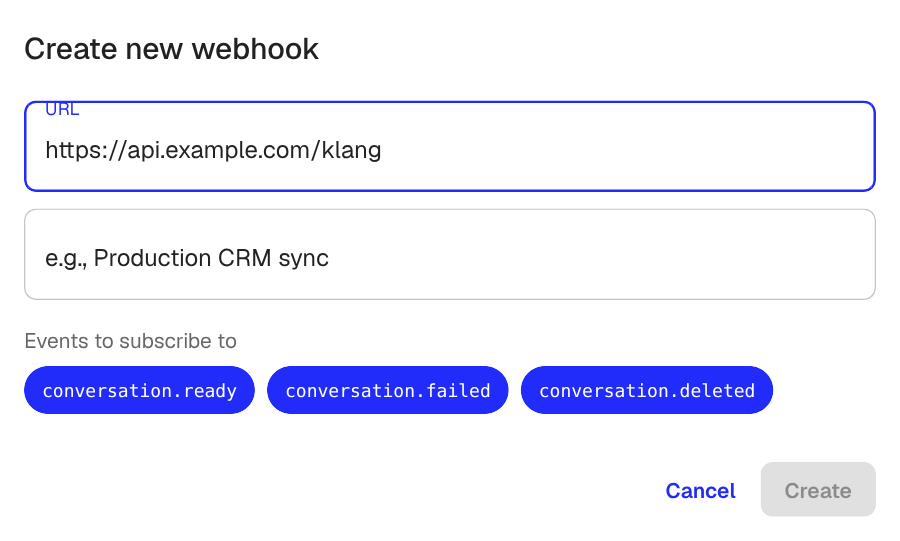
- Enter the URL that should receive the events. It must be a public HTTPS endpoint
- Optional: Add a Description so you can recognize the webhook later
- Select which events to subscribe to. All three are selected by default
- Click Create
Klang shows the signing secret after creation. Copy it and store it somewhere safe. You can also read it later on the webhook’s detail page. You will use it to verify that incoming requests come from Klang.
Available events
- conversation.ready: the transcript and AI analysis are finished and ready to fetch
- conversation.failed: processing failed for a meeting or file
- conversation.deleted: a meeting or file was deleted
Each event payload includes an event ID, the event type, and a reference to the conversation. For the full payload schema, signature header format, and example verification code, see the webhook documentation.
Events and automations
An endpoint on this page can receive two different things, and it helps to know which one you are setting up.
Events tell you that something happened. conversation.ready carries an id, a title and a status, and your server then fetches whatever content it needs from the API.
Automations send the content itself. An automation runs only on the meetings you choose, and delivers the finished report, in field names you pick, without your server calling back. You set that up in the automation’s Webhook destination, not here. It uses the same endpoints, so there is one address, one signing secret and one delivery history either way.
An endpoint used only by automations subscribes to no events at all, so it will show none selected on this page. That is expected.
Monitor deliveries
Click any webhook to open its detail page.
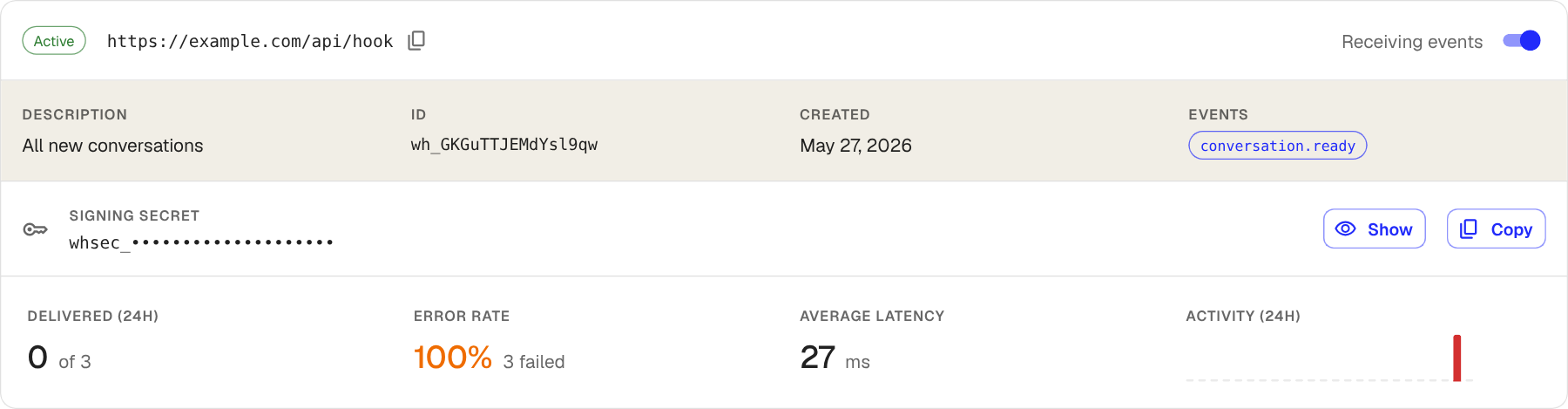
The detail page shows:
- Status and URL at the top, with a toggle to pause deliveries
- Signing secret: click Show to reveal or Copy to copy it
- 24-hour stats: delivered count, error rate, average response time, and activity
- Latest deliveries: one row per delivery attempt. Click a row to see the request body and your server’s response
Klang retries a failed delivery up to six times, waiting longer after each attempt, over about seven hours. A webhook is paused automatically once five deliveries in a row have failed and they have been failing for at least a day. A short outage will not switch it off. Fix your endpoint, then turn Receiving events back on.
Send a test event
To check that your endpoint works:
- Open the webhook detail page
- Click Send test event in the top-right corner
- If your webhook is subscribed to more than one event, choose which event to send
- Watch the new row appear in Latest deliveries
Test events are marked with a TEST tag and use event IDs prefixed with evt_test_. The payload schema matches a real event so you can verify your handler end to end.
Pause or delete a webhook
On the webhook detail page:
- To pause, turn off Receiving events. Klang stops sending events but keeps the webhook and its history
- To delete, click Edit, then Delete webhook at the bottom of the dialog
You can also pause or delete from the … menu on the webhooks list.
Next steps
- Read the webhook documentation for payload schemas and signature verification
- Manage your integrations to send events through built-in services like Slack instead
Was this article helpful?
Your feedback helps us improve our documentation.
Suggested Articles
Need more help?
Our support team is here to help you.