Changing your sign-in method
Switch between email, Google, Microsoft, or change your password.
Klang supports four sign-in methods: email with a one-time code, email and password, Google, and Microsoft. You can change your method or password at any time from the Sign-in & Security page.
Open Sign-in & Security
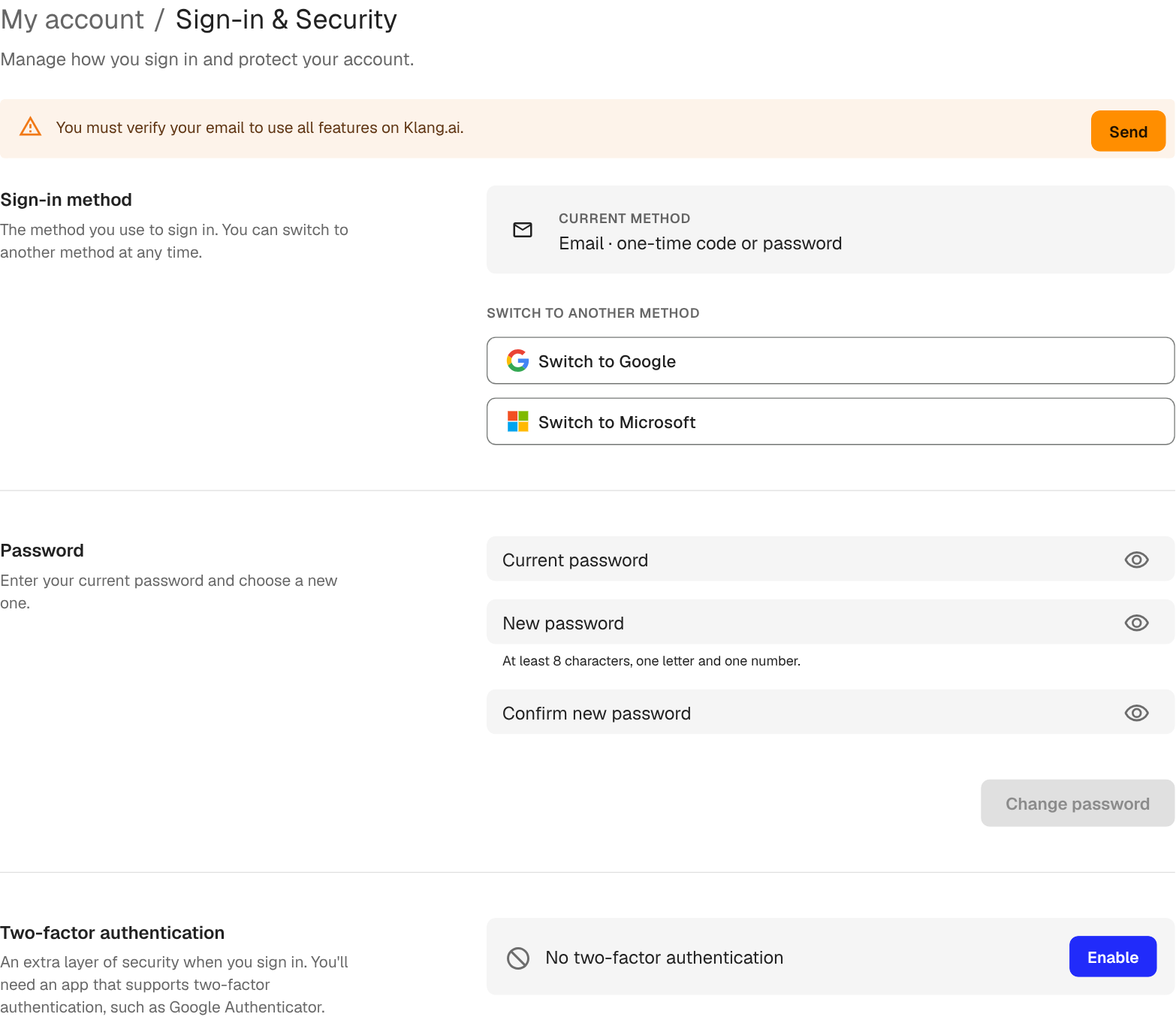
The page shows your current method at the top, and below it the options to switch method, change your password, and enable 2FA.
Switch to Google or Microsoft
- In the Sign-in method section, click Switch to Google or Switch to Microsoft
- Sign in with the matching account
- Confirm the switch
After the switch, you sign in with the new provider. Your old password no longer works.
Switch back to email
- Click Switch to Email
- Klang sends a one-time code to your email
- Enter the code to confirm
You can then sign in with a one-time code each time, or set a password (see below) to use a password instead.
Change your password
- In the Password section, enter your current password
- Enter a new password (at least 8 characters, one letter, one number)
- Re-enter the new password to confirm
- Click Change password
If you sign in with Google or Microsoft, the password section is hidden. You manage that password with the provider, not in Klang.
Verify your email
If your email is not verified yet, a banner at the top of the page asks you to verify. Click Send to receive a verification link, then open the link from your inbox. Some features require a verified email.
Restrictions from your workspace
The workspace admin decides which sign-in methods are allowed. If a method is turned off, its Switch to … button is hidden. If your admin requires Google or Microsoft SSO with a specific company domain, only accounts on that domain can be used.
Was this article helpful?
Your feedback helps us improve our documentation.
Suggested Articles
Need more help?
Our support team is here to help you.