Recording a meeting with the Klang bot
Send a bot to record and transcribe your online meetings.
The Klang bot joins your online meeting as a participant, records the audio, and transcribes it automatically. It works with Google Meet, Microsoft Teams, and Zoom.
Record a meeting now
- At the bottom of the sidebar, click Upload new
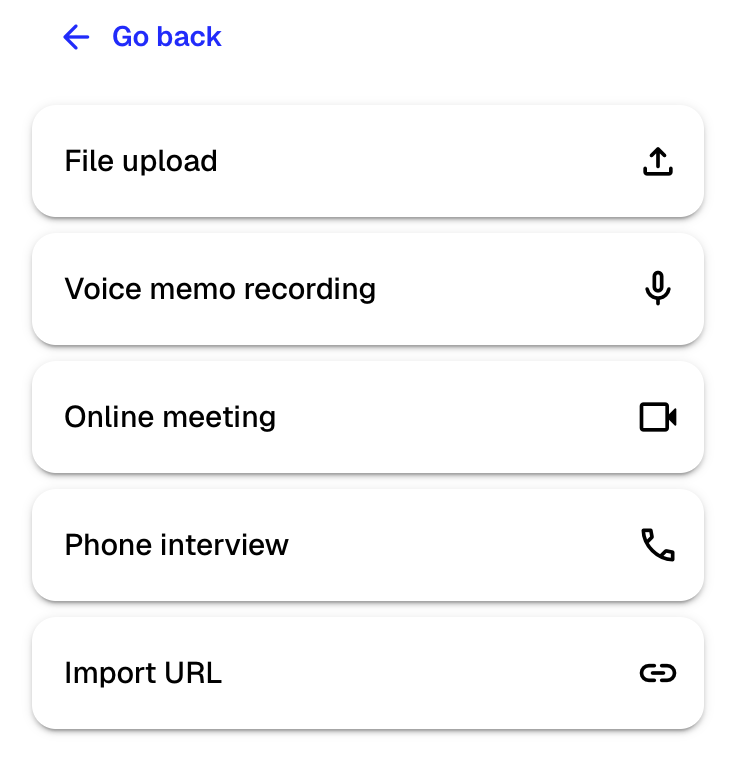
- Select Online meeting from the menu
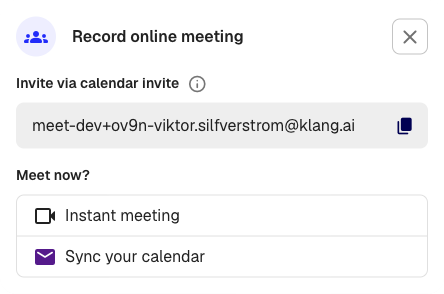
- Click Instant meeting
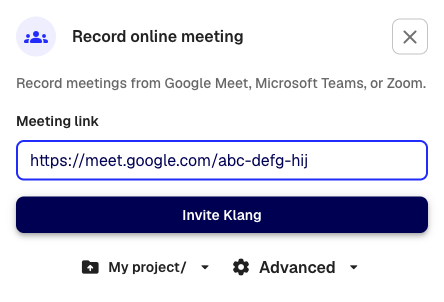
- Paste the meeting link into the Meeting link field
- Click Invite Klang
The bot joins your meeting within a minute. It appears as a participant named “Klang.ai” (or your custom bot name, if configured). When the meeting ends, Klang transcribes the recording and notifies you when it is ready.
Record a meeting that is not in your calendar
If you have a one-time meeting or an ad-hoc call that is not in your calendar, use the Instant meeting option described above. Just paste the meeting link and click Invite Klang, no calendar event is needed. This works for any supported platform.
Invite the bot to a future meeting
You can also invite Klang by forwarding a calendar invitation to your personal Klang email address. This address is shown at the top of the Online meeting dialog — click the copy button to copy it.
Forward the calendar invite for your upcoming meeting to this address. Klang will join the meeting at the scheduled time and record it automatically.
For recurring recordings, consider connecting your calendar to have Klang join meetings automatically.
Supported platforms
- Google Meet:
https://meet.google.com/... - Microsoft Teams:
https://teams.microsoft.com/...orhttps://teams.live.com/... - Zoom:
https://zoom.us/j/...orhttps://zoom.us/my/...
If the link is not recognized, an error message appears below the field.
Settings
Before clicking Invite Klang, you can adjust settings by clicking Advanced at the bottom of the dialog:
- Recording name: A custom name for the meeting file (defaults to the current date and time)
- Language: Set the spoken language, or leave on Automatic
- Formatting: Choose between Transcription (full transcript with speaker labels) or Subtitles (timed subtitle format)
- Folder: Choose which folder to save the recording in
What happens during the meeting
The bot joins as a regular participant. Meeting attendees will see it in the participant list. The bot records audio and tracks who is speaking based on the participant list.
When the meeting ends, or when all other participants leave, the bot exits and the recording is sent for transcription.
Good to know
- The bot needs to be admitted to the meeting. If your meeting has a waiting room, someone must let the bot in.
- Workspace admins can customize the bot’s display name and image in Settings > Features > Meeting assistant.
- Each recording uses credits from your workspace plan.
Was this article helpful?
Your feedback helps us improve our documentation.
Suggested Articles
Need more help?
Our support team is here to help you.