
Managing folders
Create, rename, move, and delete folders to organize your content.
Folders help you organize transcriptions, files, documents, and analyses in Klang. Top-level folders are called projects. You can create subfolders inside projects to further organize your content.
Opening the folder menu
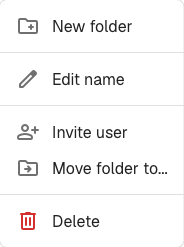
Folder actions live in a single menu that you open from the folder name in the breadcrumb.

- Open the project or subfolder you want to change
- In the breadcrumb at the top, click the folder name
Creating a folder
- Open the folder menu
- Click New folder
- Enter a name and click Create
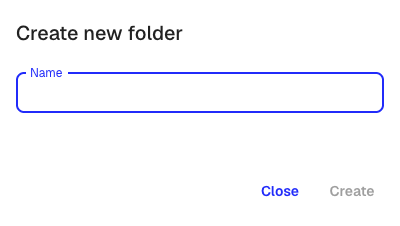
The new folder is created inside the folder you opened the menu from.
Renaming a folder
- Open the folder menu
- Click Edit name
- Enter the new name and click Save
Moving content between folders
You can move folders and files to a different location in two ways.
Using the menu
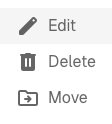
- Click the three-dot menu more_vert on the item you want to move
- Select Move
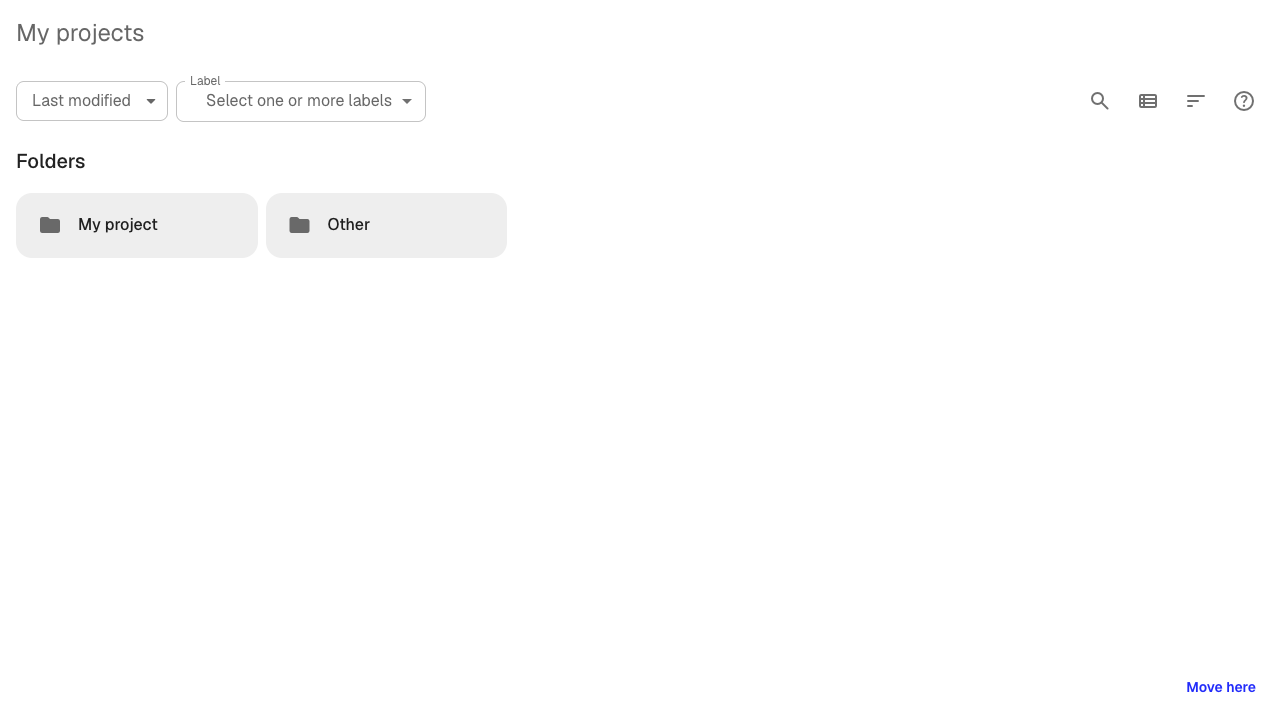
- Browse to the destination folder
- Click Move here
To move the current folder itself, open the folder menu in the breadcrumb and click Move folder to….
Using drag and drop
Select one or more items and drag them to the destination folder in the sidebar or in the folder view. You can select multiple items by holding Ctrl (or Cmd on Mac) and clicking each item.
Deleting a folder
- Open the folder menu
- Click Delete
- Confirm the deletion
A folder can only be deleted if it is empty. If the folder still contains files, subfolders, or analyses, you need to move or delete them first. Move content to another folder using the steps above, then try deleting again.
Folder permissions
Access to content is controlled at the project level. Subfolders inherit permissions from their parent project. To learn how to share folders and manage access, see Sharing folders with your team.
Was this article helpful?
Your feedback helps us improve our documentation.
Suggested Articles
Adding sources to an analysis
Attach transcripts, files, recordings, web pages, and pasted text to an analysis.
Analyzing multiple files in one analysis
Combine several transcripts, documents, or recordings in the same analysis.
Creating an analysis
Combine sources and use AI to extract insights, summaries, and answers.

Need more help?
Our support team is here to help you.