Connecting Klang to an MCP client
Give AI tools like Claude and Cursor read access to your Klang workspace.
Klang has a Model Context Protocol (MCP) server that lets AI clients read your workspace content. Once connected, a tool like Claude Desktop or Cursor can answer questions grounded in your meetings, files, and analyses.
What MCP gives you
MCP is an open standard that connects AI clients to outside data sources. Klang’s MCP server gives a connected client read access to the content you can already see in Klang: meetings, files, documents, and analyses.
Access is read-only. A connected client can read your content, but it cannot change anything in your workspace.
Connect a client
- Open the Klang menu in the top-left corner, then click Settings
- Under Developers, click MCP
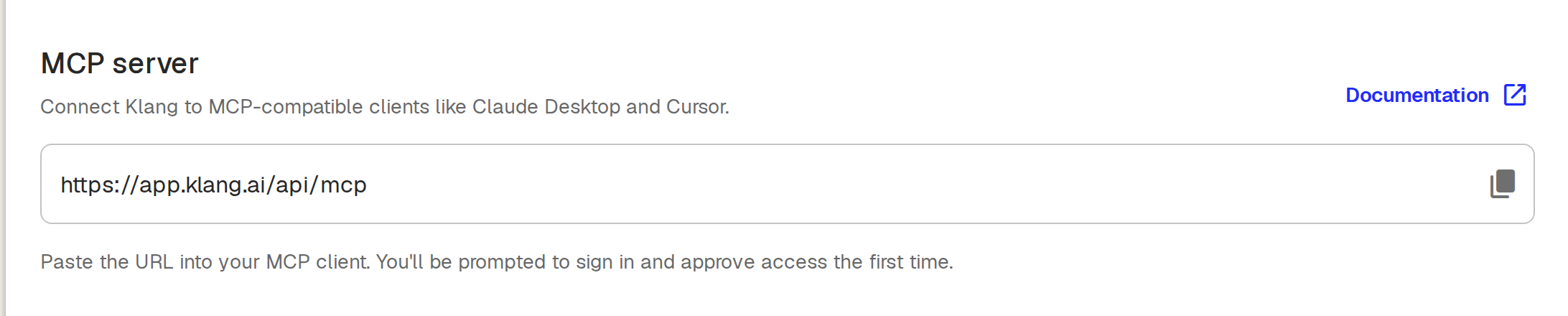
- Copy the server URL:
https://api.klang.ai/api/mcp - In your MCP client, add a new MCP server and paste the URL
- The first time you connect, you are prompted to sign in to Klang and approve access
The client now appears under Connected apps on the MCP page.
Setup guides for specific clients
The exact steps differ by client. For detailed guides and examples of connecting Claude, ChatGPT, Claude Code, Cursor, Mistral Vibe, and others, see the MCP documentation.
Connect a client that cannot sign in
Some clients cannot open a browser to complete the sign-in step. For those, authenticate with an API key instead: create a key, then give it to the client as the bearer token for the MCP URL. See Managing API keys for how to create one.
Manage access
Every client you connect is listed under Connected apps on the MCP page. To stop a client from reaching your workspace, remove it from that list. Its access is revoked right away.
Was this article helpful?
Your feedback helps us improve our documentation.
Suggested Articles
Need more help?
Our support team is here to help you.