Adding modules to your workspace
Workspace admins can enable add-on modules that unlock extra features.
Modules are optional add-ons that unlock extra features for your whole workspace. They are available on the Pro and Team plans, and only workspace admins can add or remove them.
Add a module
- Open the Klang menu in the top-left corner, then click Settings
- Under Workspace, click General
- Scroll to Add-ons. Each available module is listed with a short summary and its price.
- On the module you want, click Add
- Confirm the purchase
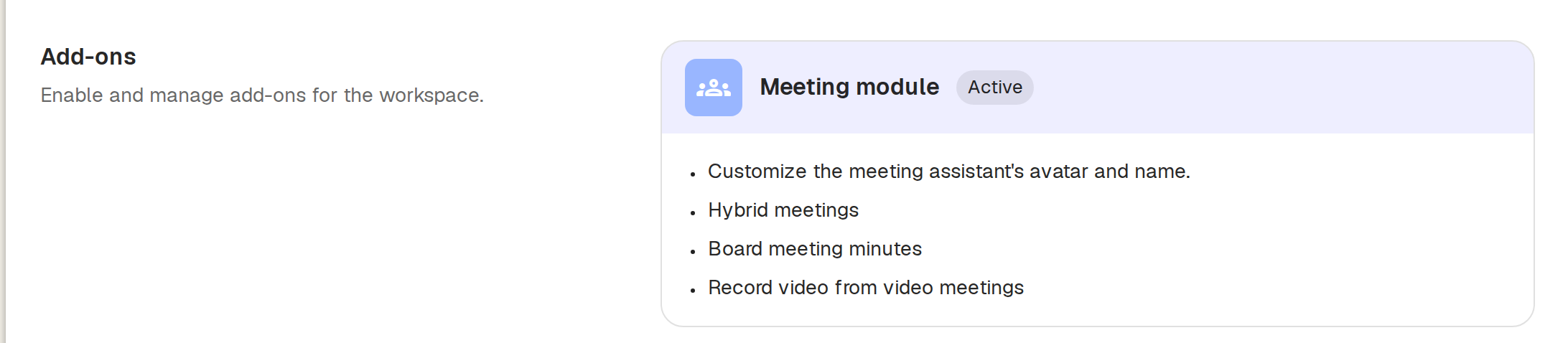
The module is added to your subscription and shows as Active. Its features become available to everyone in the workspace.
Remove a module
In the same Add-ons section, open the active module and click Delete. The module stays active until the end of your current billing period.
If you cannot add a module
- Only admins can manage add-ons. If you do not see workspace settings, ask your workspace admin to make the change.
- Some plans do not offer self-service add-ons. If the module you want is not listed, contact us and we will enable it for you.
Was this article helpful?
Your feedback helps us improve our documentation.
Suggested Articles
Need more help?
Our support team is here to help you.