Sharing folders with your team
Control who can access your projects and folders.
Folders help you organize content in Klang. Projects (top-level folders) control who can access the content inside them. Subfolders inherit access from their parent project.
Opening the sharing dialog
- Open the project you want to share
- In the breadcrumb at the top, click the folder name to open the folder menu

- Click Invite user
The permissions dialog opens, showing everyone who currently has access.
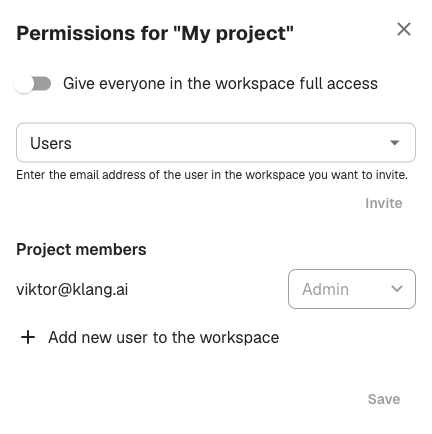
Inviting a team member
- In the Users field, enter the email address of the person you want to invite
- Select a role from the Role dropdown
- Click Invite
The invited person receives access immediately if they are already part of your workspace. If they are not a workspace member, click Add new user to the workspace at the bottom of the dialog to invite them first.
Roles explained
- Admin: Full control over the folder, including sharing settings and the ability to delete content
- Edit: Add, modify, and remove content inside the folder, but cannot change sharing settings
- View: Read-only access to all content in the folder
Choose the role that matches what the person needs to do. You can change roles later.
Giving the whole workspace access
Toggle Give everyone in the workspace full access at the top of the permissions dialog. This gives all workspace members edit access without needing individual invitations.
This is useful for shared resources that the entire team should be able to contribute to.
Changing or removing access
- Open the permissions dialog
- Find the person in the Project members list
- Select a new role from the dropdown, or remove them from the project
Click Save to apply changes.
Folder icons
The sidebar shows different icons to help you identify folder access at a glance:
- folder Folder: Private project, only you have access
- folder_shared Shared folder: Shared with one or more team members
Was this article helpful?
Your feedback helps us improve our documentation.
Suggested Articles
Need more help?
Our support team is here to help you.