
Recording directly from your browser
Use your microphone to record and transcribe audio.
You can record audio directly in Klang using your computer’s microphone. The recording is transcribed automatically when you finish, no file upload needed.
Start a recording
- At the bottom of the sidebar, click Upload new, or click the microphone button next to it for a quick recording
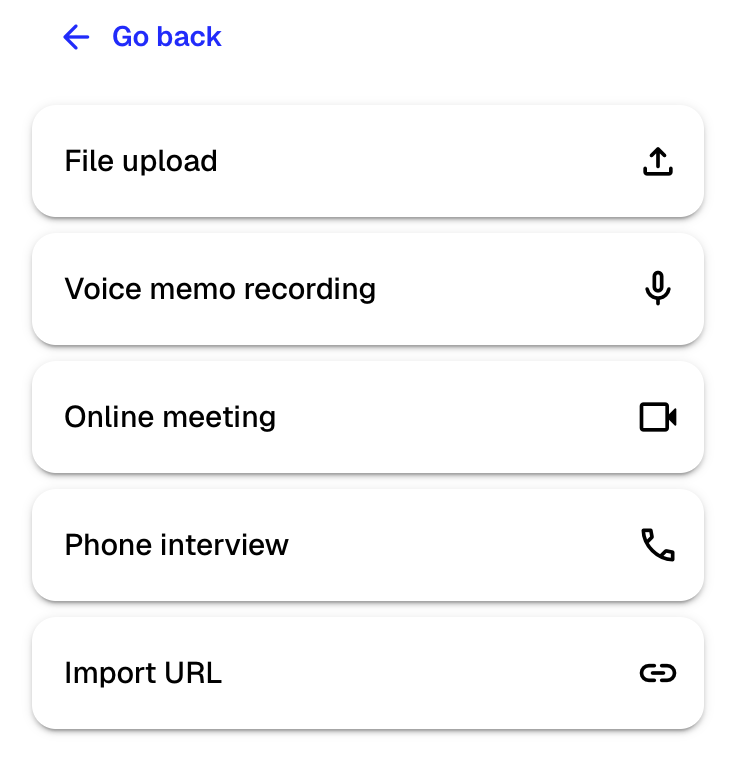
- Select Voice memo recording from the menu
- Enter a name for the recording
- Choose which folder to save it in
- Select your microphone from the dropdown
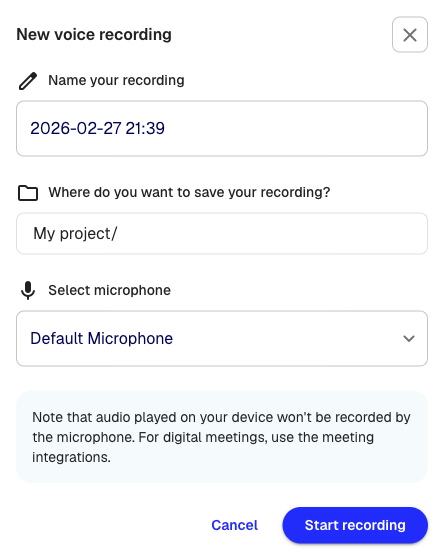
- Click Start recording
Recording begins immediately. You see a waveform visualization and a timer showing the duration.
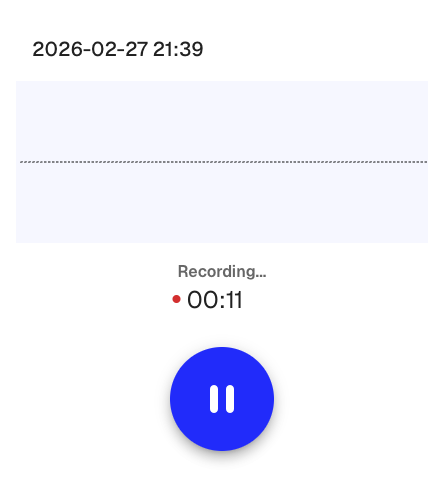
Pause and resume
Click the pause button to pause the recording. While paused, you can:
- Change the save folder
- Expand Advanced to adjust language, number of speakers, and formatting
- Resume by clicking the microphone button
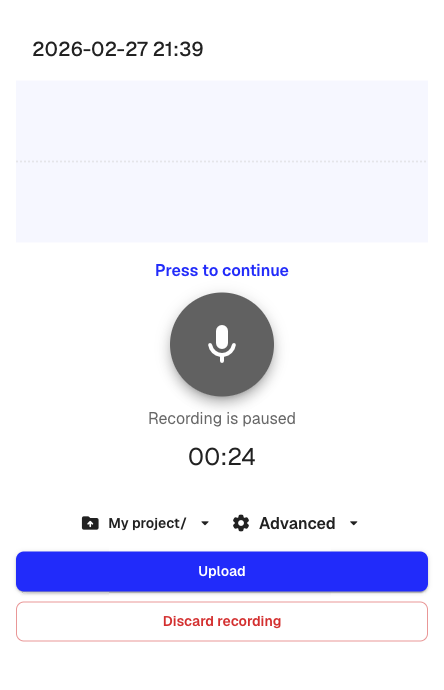
Finish and upload
- Click the pause button to stop recording
- Review the transcription settings
- Click Upload
Klang uploads the recording and starts the transcription. You receive a notification when the transcript is ready.
To discard the recording instead, click Discard recording.
Good to know
- Your browser asks for microphone permission the first time you record. Allow it to continue.
- Audio played on your device (for example, from a video call) is not captured by the microphone. For online meetings, use the meeting bot instead.
- If you close the browser during a recording, Klang saves the progress locally. The next time you open the recording dialog, you can upload or discard the interrupted recording.
Was this article helpful?
Your feedback helps us improve our documentation.
Suggested Articles
Adding sources to an analysis
Attach transcripts, files, recordings, web pages, and pasted text to an analysis.
Analyzing multiple files in one analysis
Combine several transcripts, documents, or recordings in the same analysis.
Creating an analysis
Combine sources and use AI to extract insights, summaries, and answers.

Need more help?
Our support team is here to help you.