Managing subscription seats
Add or remove seats to control how many users can join your workspace.
Seats determine how many users can be active in your workspace at the same time. Workspace admins can adjust the seat count at any time.
Check your current seats
Open Settings → Billing → Invoices. Your active plan shows the current number of seats and how many are in use.
Add or remove seats
- Open Settings → Billing → Invoices and find the Subscription size control on your active plan
- Click + to add a seat or − to remove one
- Click Approve to confirm the change
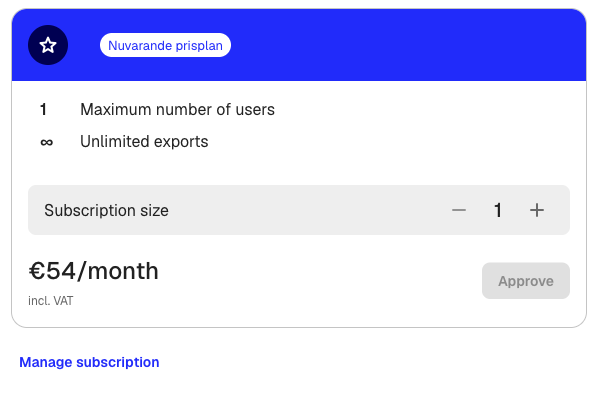
The updated seat count takes effect immediately. Your next invoice reflects the prorated change.
You cannot reduce seats below the number of active members in your workspace. To free up a seat, remove a member first under Settings → Workspace → Members.
What happens when you reach the seat limit
When all seats are taken, the invite button is disabled on the Members page. A banner shows how many seats are in use and offers a link to update your subscription.
If you invite a new member while at the limit, Klang automatically adds a seat to your subscription to make room.
Seat limits by plan
- Trial: 1 seat. Invite a second user to start a paid subscription.
- Paid plans: Adjustable from 1 to 50 seats per workspace.
- Enterprise: Custom seat limits. Contact your account manager to adjust.
Manage your subscription
For payment method changes, invoice history, or cancellation, click Manage Subscription on the billing page. This opens a portal where you can update your payment details and review past invoices.
Was this article helpful?
Your feedback helps us improve our documentation.
Suggested Articles
Need more help?
Our support team is here to help you.