
Connecting Microsoft OneDrive
Import files from and export results to OneDrive.
Connect Microsoft OneDrive to pull files into Klang for analysis and push flow results back to your OneDrive folders.
Connect your account
- Open Settings → Integrations
- Find OneDrive and click Add
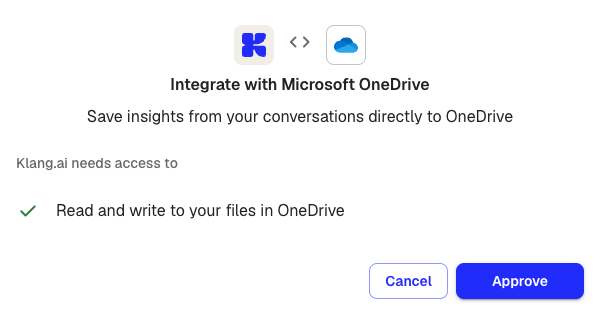
- Review the permissions Klang needs and click Approve
- Sign in with your Microsoft account and grant access
After connecting, OneDrive shows a green Active badge on the integrations page.
Import files from OneDrive
Once connected, OneDrive appears as an import option in two places:
- Analysis sources — When adding sources to an analysis, click the + button next to Sources, choose From integrations, and select files from your OneDrive
- Upload — When uploading content, you can pick files from OneDrive instead of your computer
A file picker opens where you can browse your OneDrive folders and select one or more files. Selected files are copied into Klang for processing — the originals in OneDrive stay unchanged.
Use OneDrive in flows
Add a OneDrive output node to any flow to save results to your OneDrive automatically.
- In the flow editor, drag a OneDrive node from the sidebar onto the canvas
- Connect it after the node whose output you want to export
- Click the OneDrive node and select a destination folder
Each time the flow runs, the result is saved to that folder. This works with both manual runs and automated triggers.
Disconnect
- Open Settings → Integrations
- Find OneDrive and click Remove
- Confirm in the dialog
Any flow nodes that use OneDrive will stop working after you disconnect. Check your active flows and update them before removing the connection.
Was this article helpful?
Your feedback helps us improve our documentation.
Suggested Articles

Need more help?
Our support team is here to help you.