Creating prompt templates
Save reusable prompts for yourself or your team to use in analyses and chat.
Available on the Team plan .
Prompt templates let you save questions and instructions once and reuse them across analyses and chats. Keep a prompt private for your own work, or share it with the workspace so your team asks the same way every time.
Private and shared prompts
Prompt templates are available on the Team plan. Each prompt is either private or shared:
- Private: only you can see and use it. Every member can create private prompts
- Shared: everyone in the workspace can see and use it. Only workspace admins can share a prompt, and only admins can edit or delete shared prompts
New prompts are private by default.
Create a prompt
- Open Settings → Features → Prompts. The page lists your private prompts and every prompt shared with the workspace
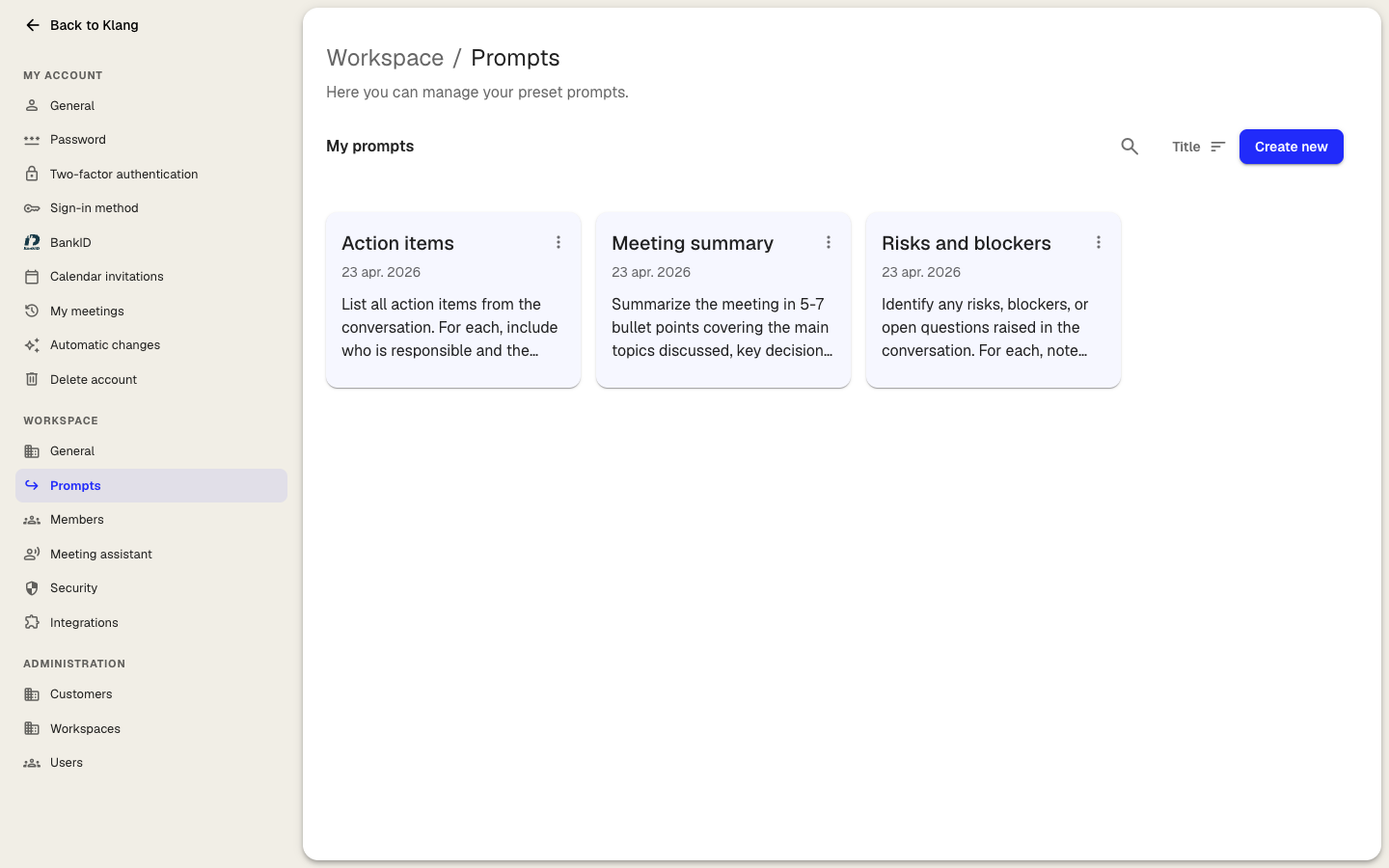
- Click New prompt in the top-right corner
- Enter a short Name that explains what the prompt does
- Optional: Click the icon button next to Icon to choose an icon for the card
- Enter the instruction under Prompt. Be specific about the format, structure, and tone you want in the answer
- Optional: If you are a workspace admin, turn on Share with workspace to make the prompt available to everyone
- Click Create prompt
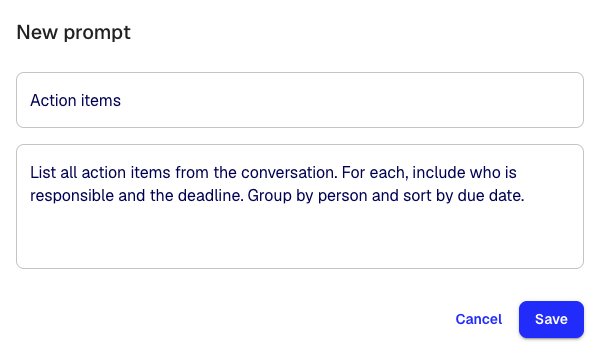
The new prompt appears as a card on the Prompts page. Each card shows whether the prompt is Private or shared with the Workspace, and how many times it has been used.
Find a prompt
- Type in Search prompts to search by name and prompt text
- Click All, Shared, or Private to filter the list
- Click the sort button to sort by Most used, Most recently created, or Title
- Click the view button next to the sort button to switch between cards and a list
Edit, copy, or delete a prompt
Right-click a prompt card, or click more_vert on the card, to open its options.
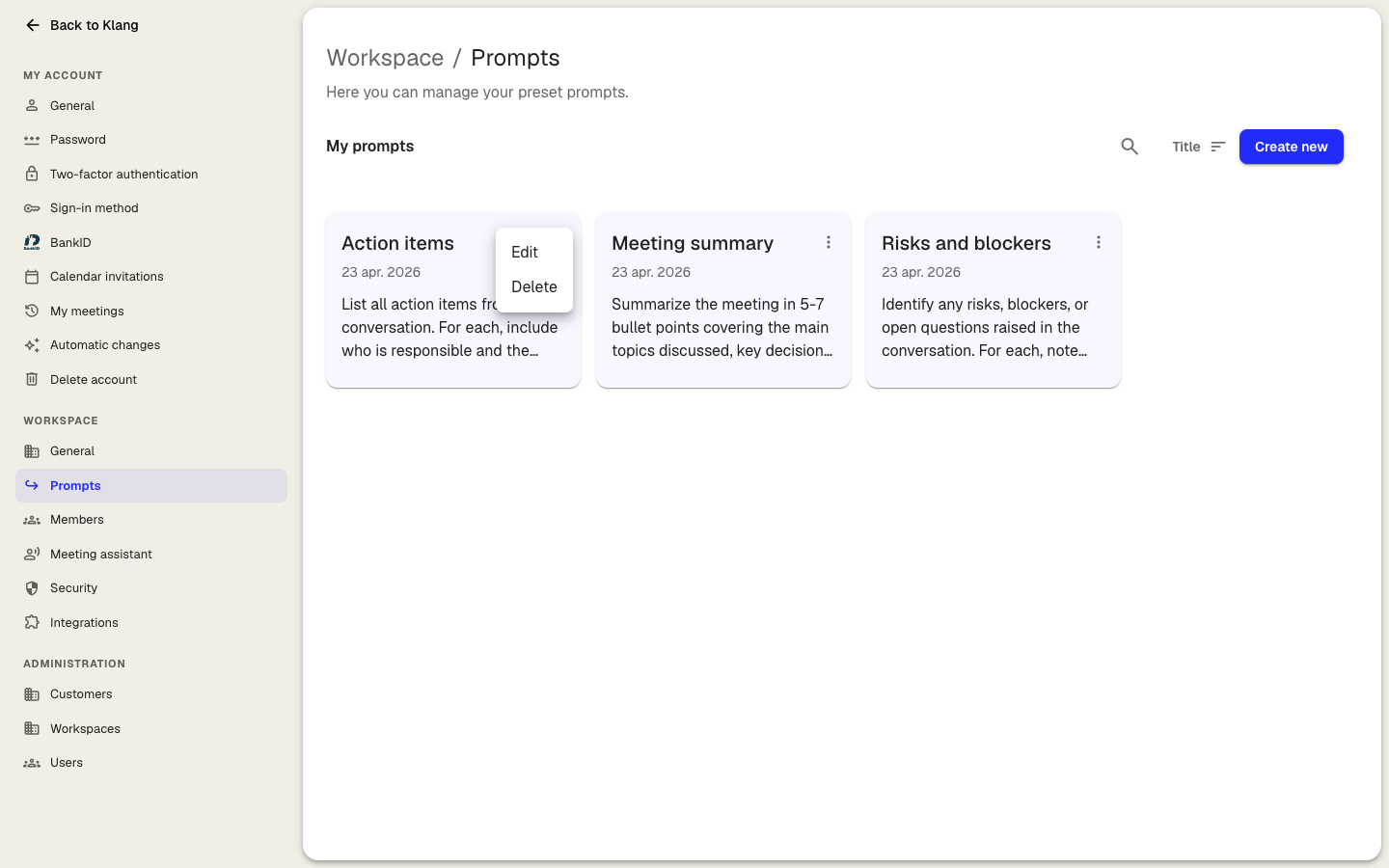
- Click Edit to change the name, icon, prompt, or sharing. You can also click the card to open it
- Click Copy prompt to copy the prompt text. The copy button in the bottom-right corner of each card does the same
- Click Delete, then confirm. Deleting a shared prompt removes it for everyone in the workspace. Prompts already used in existing analyses are not affected
Edit and Delete only appear for prompts you can manage: your own private prompts, and shared prompts if you are a workspace admin.
Where saved prompts show up
- In a chat or analysis: click Prompts next to the chat input to open your library. Click a prompt to add it to the chat input, then edit it or send it as it is
- In a custom analysis template: when you configure a template, click Prompt library to import prompts instead of writing them from scratch. See Custom analysis templates
Writing a good prompt
- Say what you want in the output, not just the topic: “Summarize in 5 bullet points” beats “Summary”
- Include format details: length, structure, tone, what to include or skip
- Ask for one thing per prompt. Split broad instructions into several prompts so you can pick the right one
Was this article helpful?
Your feedback helps us improve our documentation.
Suggested Articles
Custom analysis templates
Preconfigure analyses with your own prompts, instructions, and knowledge sources.
Creating an analysis
Combine sources and use AI to extract insights, summaries, and answers.
Analyzing multiple files in one analysis
Combine several transcripts, documents, or recordings in the same analysis.
Need more help?
Our support team is here to help you.