Inviting your team to a workspace
Add team members, assign roles, and manage workspace access.
Workspaces let your team collaborate on transcriptions, analyses, and files. As a workspace admin, you can invite colleagues, assign roles, and control who has access.
How to invite a team member
- In the top-left corner, click the Klang logo to open the account menu
- Click Invite user
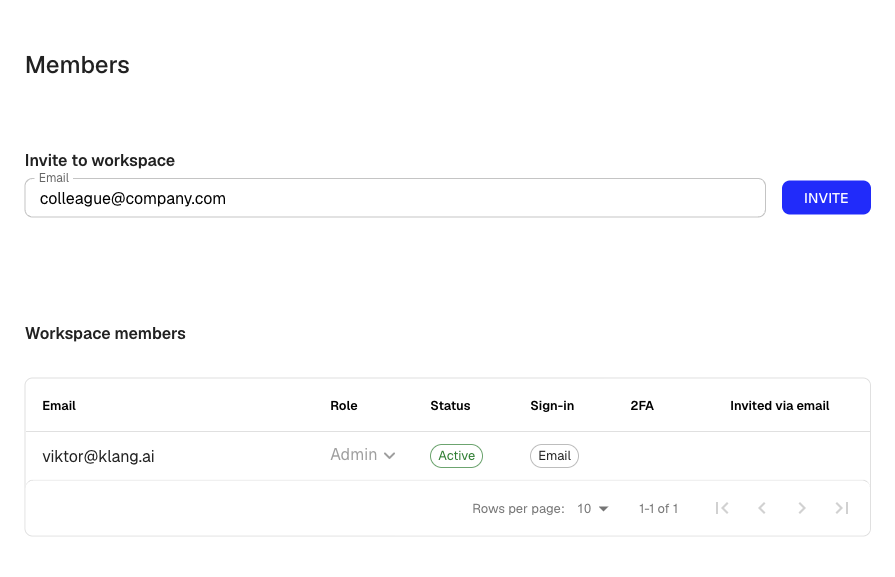
- Under Invite to workspace, enter the email address of the person you want to invite
- Click Invite
Klang sends an email invitation to that address. If the person already has a Klang account, they receive a link to join your workspace. If they are new to Klang, the email guides them through creating an account.
You can also open the members page from Settings → Workspace → Members.
Roles
Each workspace member has one of two roles:
- Admin: Can invite and remove members, change roles, and manage workspace settings such as billing, security, and meeting assistant configuration.
- Member: Can use all core features: upload files, create analyses, transcribe meetings, and collaborate on shared folders. Members cannot change workspace settings or manage other users.
The person who creates the workspace is automatically assigned the Admin role.
Changing a member’s role
- Open Settings → Workspace → Members
- In the member list, find the person whose role you want to change
- Click the Role dropdown next to their name
- Select Admin or Member
The change takes effect immediately. You cannot change your own role.
Removing a member
- Open Settings → Workspace → Members
- In the member list, click the delete icon next to the member you want to remove
A confirmation dialog appears. Once confirmed, the member loses access to the workspace.
Cancelling a pending invite
If someone has not yet accepted their invitation, you can cancel it.
- Open Settings → Workspace → Members
- Find the pending invite in the member list. It shows a status of Invitation sent
- Click Cancel invitation
The invitation link is revoked and the person can no longer use it to join.
Was this article helpful?
Your feedback helps us improve our documentation.
Suggested Articles
Need more help?
Our support team is here to help you.