Adding sources to an analysis
Attach transcripts, files, recordings, web pages, and pasted text to an analysis.
An analysis combines one or more sources and lets the AI agent answer questions about them. You can mix different kinds of sources in the same analysis, such as meeting transcripts, PDFs, web pages, and pasted text.
Opening the source picker
- Open your analysis
- In the sources list, click Add new source
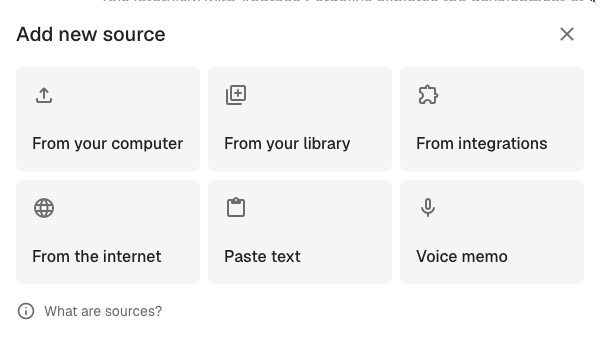
The dialog shows six ways to add a source:
- From your computer: Upload a file from your device
- From your library: Pick from transcripts, documents, and files already in Klang
- From integrations: Browse files in Google Drive, OneDrive, Dropbox, or other connected services
- From the internet: Paste a web page URL
- Paste text: Paste plain text directly as a source
- Voice memo: Record audio in the browser
From your computer
Click From your computer and drop one or more files, or click to browse. Audio and video files are transcribed automatically. Documents (PDF, Word, Excel, PowerPoint, plain text) are analyzed and added as sources.
From your library
Click From your library to open the asset picker. Browse your folders and select transcripts, files, or documents to attach. Click Add to confirm. You can also select a whole folder; every supported item inside it is attached as a source.
From integrations
Click From integrations to pick files from services your workspace has connected (Google Drive, OneDrive, Dropbox, and others). You need to have the integration connected first. To connect one, open Settings → Features → Integrations.
From the internet
Click From the internet and paste a web page URL. Klang fetches the page, extracts the main text, and adds it as a source.
Paste text
Click Paste text when you want to add a note, an email excerpt, or any text you have in your clipboard. Paste the text into the field and click Add. The text appears in the sources list with a short preview.
Voice memo
Click Voice memo to record audio directly in the browser without leaving the analysis. When you stop recording, Klang uploads the audio, transcribes it, and attaches the transcript as a source.
What happens after you add a source
Files and audio need a moment to process. A progress indicator appears next to each source while it is being prepared. Once a source is ready, it becomes available to the agent. Run a prompt or type a question in chat to analyze the new source alongside the others.
Removing a source
Hover a source in the list and click the delete icon. What happens next depends on where the source came from:
- Linked sources (added from your library, from integrations, or from the internet) are just detached from this analysis. The original file stays in your workspace and in any other analyses that use it.
- Sources created inside the analysis (pasted text, voice memos, or files uploaded directly from your computer) are deleted when you remove them. Klang asks for confirmation first and warns you if other analyses also use the source.
Was this article helpful?
Your feedback helps us improve our documentation.
Suggested Articles
Custom analysis templates
Preconfigure analyses with your own prompts, instructions, and knowledge sources.
Creating an analysis
Combine sources and use AI to extract insights, summaries, and answers.
Analyzing multiple files in one analysis
Combine several transcripts, documents, or recordings in the same analysis.
Need more help?
Our support team is here to help you.