
Setting up two-factor authentication
Add a second sign-in step using an authenticator app.
Two-factor authentication (2FA) adds a second step when you sign in. After your email and password (or SSO), you also enter a 6-digit code from an authenticator app on your phone. This protects your account even if your password leaks.
Enable 2FA
- Open Settings → My account → Sign-in & Security
- Scroll to the Two-factor authentication section
- Click Enable
Klang takes you to a new page to set it up.
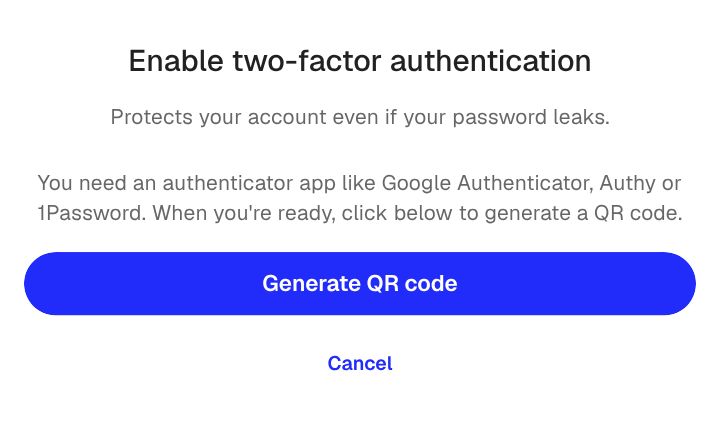
- Click Generate QR code
- Confirm with your current sign-in method
- Open your authenticator app (for example, Google Authenticator, Authy, or 1Password) and scan the QR code
- Enter the 6-digit code from the app
- Save the backup codes shown on screen
After the wizard finishes, you are sent back to Sign-in & Security and the 2FA card shows as active.
Backup codes
When you enable 2FA, Klang generates a set of one-time backup codes. Use one of them in place of the authenticator code if you lose access to your phone.
Store the codes in a safe place, such as a password manager. If you run out of backup codes and lose your phone, you will no longer have access to your account.
Sign in with 2FA
- Sign in with your email and password (or SSO)
- When prompted, open your authenticator app and enter the current 6-digit code
- If you do not have access to the app, click Use backup code and enter one of your saved codes
Required 2FA
Workspace admins can require 2FA for all members. If your admin has turned this on and you have not set up 2FA, you are signed out and prompted to set it up the next time you sign in. You cannot use Klang again until 2FA is active on your account.
Disable 2FA
- Open Settings → My account → Sign-in & Security
- In the Two-factor authentication section, click Disable
- Confirm with a code from your authenticator app
If your workspace requires 2FA, the Disable button is hidden. Ask your admin first.
Was this article helpful?
Your feedback helps us improve our documentation.
Suggested Articles

Need more help?
Our support team is here to help you.