
Transcribing from a YouTube URL
Import and transcribe a public YouTube video.
You can transcribe any public YouTube video by pasting its URL into Klang. The video is downloaded, transcribed, and added to your workspace like any other file.
How to transcribe a YouTube video
- At the bottom of the sidebar, click Upload new
- Select Import URL from the menu
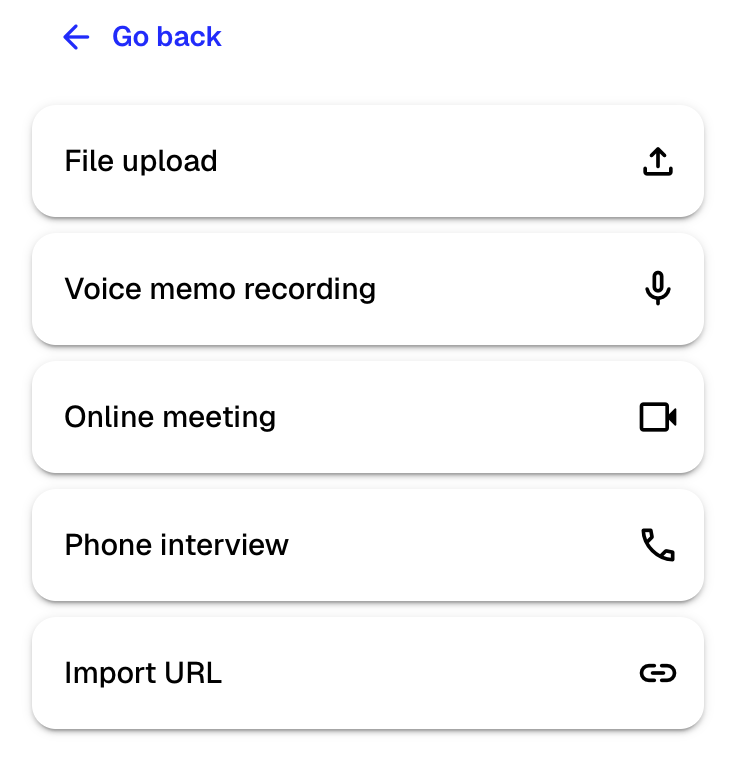
- Paste the YouTube URL into the URL field
- Enter a file name for the transcription
- Click Import URL
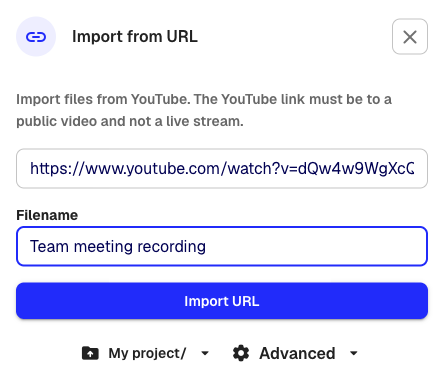
Klang downloads the video, converts it, and starts the transcription. You receive a notification when the transcript is ready.
Supported URL formats
Klang accepts standard YouTube links:
https://www.youtube.com/watch?v=...https://youtu.be/...https://m.youtube.com/watch?v=...(mobile links)
If the URL is not recognized, an error message appears below the field.
Requirements
- The video must be public. Private and unlisted videos cannot be downloaded.
- The video must not be a live stream. Only completed, on-demand videos are supported.
Settings
Before clicking Import URL, you can adjust transcription settings by clicking Advanced at the bottom of the dialog:
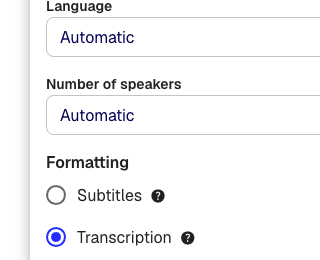
- Language: Set the spoken language, or leave on Automatic to let Klang detect it
- Number of speakers: Set the expected number of speakers, or leave on Automatic
- Formatting: Choose between Transcription (full transcript with speaker labels) or Subtitles (timed subtitle format)
- Folder: Choose which folder to save the file in
Good to know
- The original video is available for playback in Klang once processing finishes.
- Trial accounts have an upload limit that also applies to YouTube imports.
Was this article helpful?
Your feedback helps us improve our documentation.
Suggested Articles
Adding sources to an analysis
Attach transcripts, files, recordings, web pages, and pasted text to an analysis.
Analyzing multiple files in one analysis
Combine several transcripts, documents, or recordings in the same analysis.
Creating an analysis
Combine sources and use AI to extract insights, summaries, and answers.

Need more help?
Our support team is here to help you.