Choosing which meetings an automation runs on
Use conditions so an automation only fires on the meetings you mean.
An automation with no conditions runs on every new meeting you record or upload. Conditions narrow that down, so the sales channel only gets customer calls and the CRM never sees your internal standup.
Add a condition
- Open the automation and find the Conditions section
- Click Add condition
- Pick the type of condition
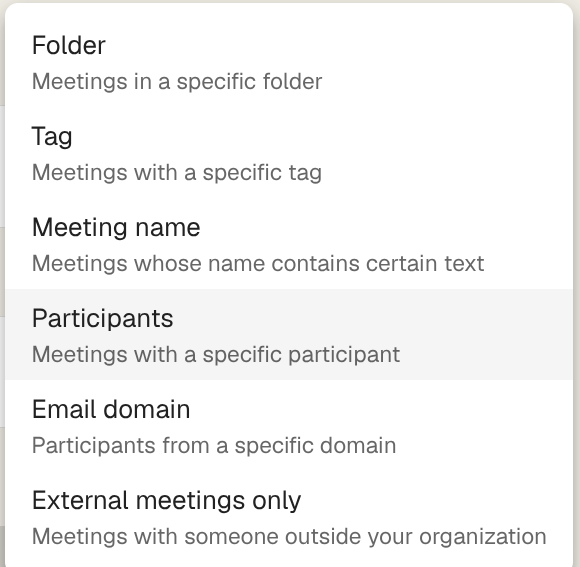
- Enter or choose the value, then click Save
Conditions appear as chips. Click the cross on a chip to remove it.
The condition types
Folder: Meetings in a folder, including everything in folders beneath it. Useful when your workspace is already organised by client or project.
Tag: Meetings carrying a tag. Only tags a person has actually applied count; a tag Klang has merely suggested does not fire the automation.
Meeting name: Meetings whose name contains the text you enter. It matches anywhere in the name and ignores capitalisation, so weekly matches “Weekly sync, Nordics”.
Participant: Meetings with one specific person. Enter their email address, or their name as it appears in the meeting.
Email domain: Meetings with anyone from a domain. Enter @customer.com or customer.com; both work.
Only external meetings: Meetings where at least one participant is from outside your organisation. This is the one to reach for when an automation writes into a CRM.
Combining conditions
Above the chips, choose whether all conditions must be true or any of them.
Use all to be specific: meetings in the Sales folder and with someone outside the company. Use any to widen: meetings tagged Interview or meetings in the Recruitment folder.
What conditions can’t see
Conditions are evaluated against the meeting, not its content. There is no condition for “meetings where we discussed pricing”. For that, put the instruction in the content instead and let Klang read the meeting.
Participant and domain conditions need participants to be known, which comes from the calendar invitation. A file you uploaded by hand, a phone recording, or a dictated note usually has none, so those conditions will not match them.
When a condition changes nothing
If an automation has stopped delivering, check the conditions before anything else. A folder that was renamed still works, because conditions follow the folder rather than its name. A folder that was deleted, or a tag nobody applies any more, will silently match nothing.
The run history only lists meetings the automation actually ran on. A meeting that was filtered out leaves no trace there, so an empty history usually means the conditions are narrower than you intended.
Was this article helpful?
Your feedback helps us improve our documentation.
Suggested Articles
Need more help?
Our support team is here to help you.