Introduction to automations
Send what Klang creates to where your team already works.
An automation sends the report from a finished meeting somewhere else, without anyone clicking anything. When the meeting is ready, Klang posts it to a Slack channel, writes it into a Notion page, adds it as a note on the right contact in your CRM, or emails it to the people who were there.
What an automation is made of
Every automation answers three questions.
Where does it go? One destination: Slack, Microsoft Teams, Notion, Google Drive, OneDrive, Dropbox, HubSpot, Pipedrive, or email.
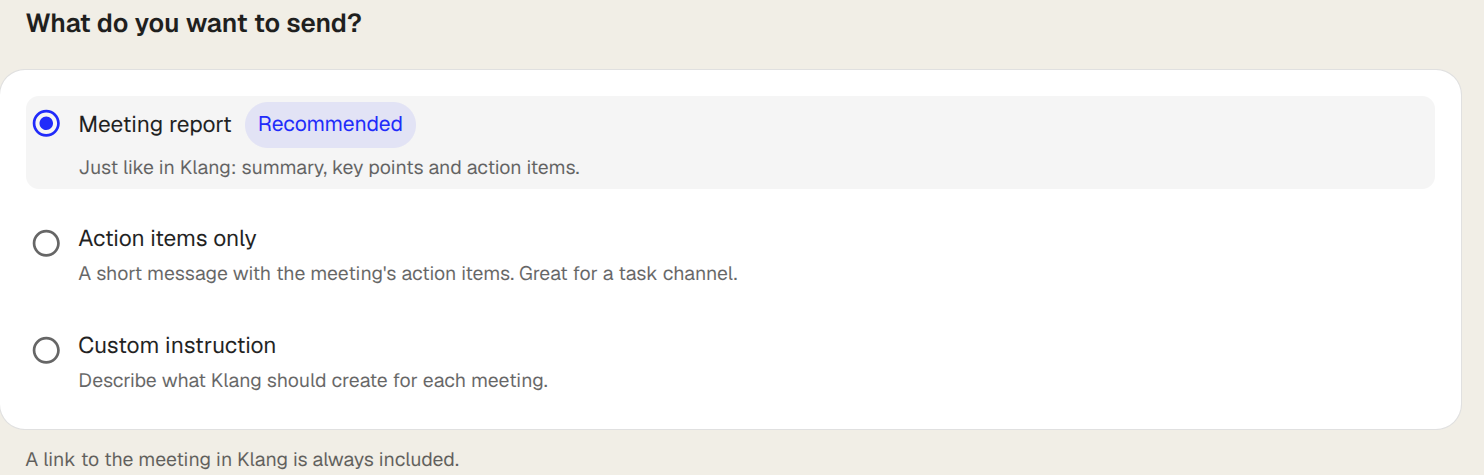
What gets sent? Choose the meeting report, just the ToDos, or your own instruction describing what Klang should write each time. The report itself comes in two parts: the overview, and the topics and key insights behind it. You can send either or both.
Which meetings? By default, every new meeting of yours. Add conditions to narrow it: meetings in a folder, meetings with a tag, meetings whose name contains something, meetings with a particular participant, meetings with someone from a given email domain, or only meetings with someone outside your organisation.
Create an automation
- In the sidebar, click Automations
- Click the destination you want, or click New automation and pick one
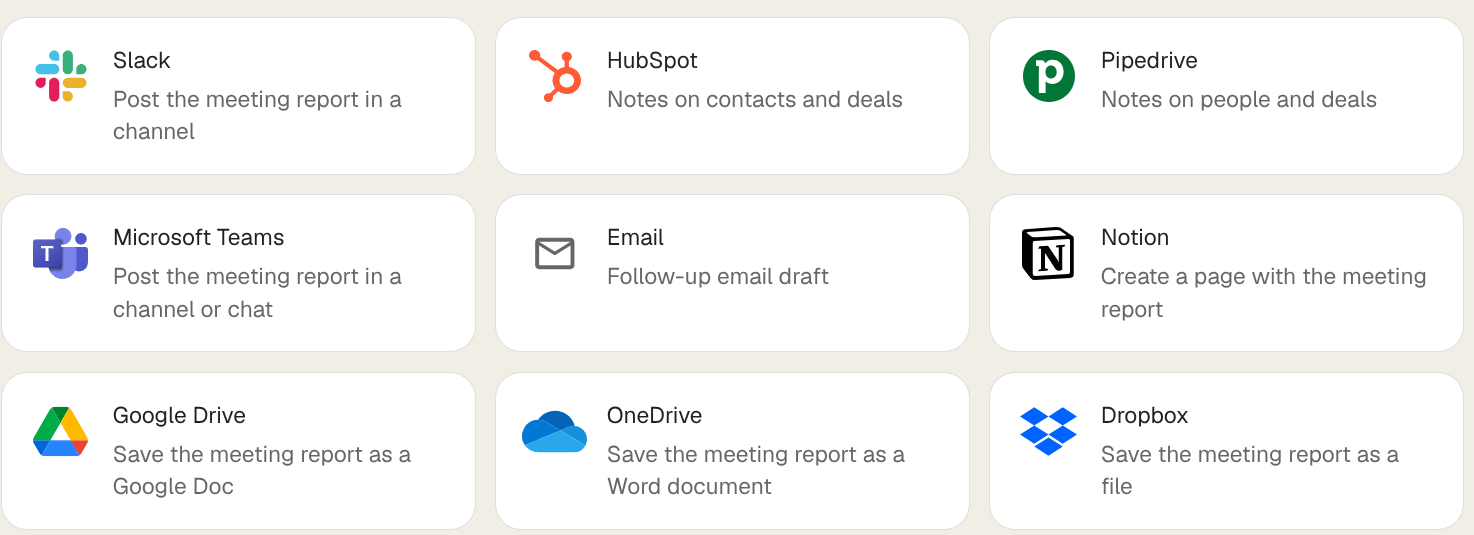
- Connect the service if you have not already. Klang opens the provider’s login in a new window
- Fill in where it should land: a Slack channel, a Notion page, a folder
- Under Content, choose what gets sent
- Optional: under Conditions, click Add condition to narrow which meetings it runs on
- Click Activate automation
The automation starts working on the next meeting that matches. It does not go back over earlier meetings on its own. Right after you activate it, Klang shows the recent meetings that match and offers to send them, up to 25 at a time.
Try it before you rely on it
On an automation’s page, click Test on an earlier meeting and pick one. Klang builds exactly what it would send and delivers it, so you can look at the result in Slack or Notion and adjust the wording before it runs on its own.
For HubSpot and Pipedrive the test is a preview instead: it shows which contact, deal or lead it matched and which fields it would fill, without writing anything into your CRM.
Test runs appear in the history alongside real ones and never count as the meeting’s run, so you can test the same meeting as often as you like.
Who can see what
An automation belongs to you and runs on your meetings. Set the scope to the whole workspace and it also runs on colleagues’ meetings, but only the ones you already have access to. It never widens what you can see, and it always delivers using your own connections.
Was this article helpful?
Your feedback helps us improve our documentation.
Suggested Articles
Need more help?
Our support team is here to help you.