When an automation stops working
Read the run history, fix a broken connection, and re-run what was missed.
Every automation keeps a history of what it did, one row per meeting. That history is where you find out what went wrong, and where you fix it.
Read the run history
Open the automation. Under History each row shows the meeting, when it ran, and what happened.
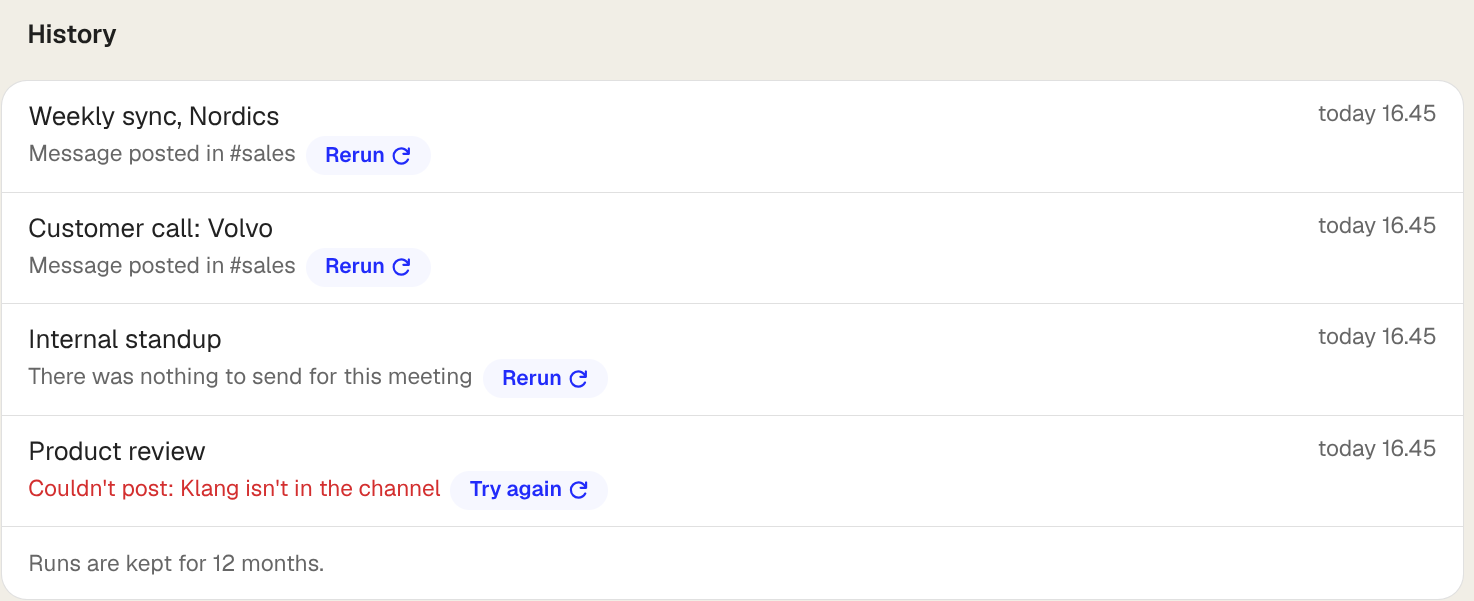
- Delivered: It worked. The row links to what was created where the destination gives Klang a link.
- Waiting for your answer: Only from CRM automations. Klang could not tell which record the meeting belonged to. Click the row and pick one; it sends immediately.
- Skipped: There was nothing to send for that meeting. A ToDo automation on a meeting with no ToDos, or a CRM automation on a meeting with no external participants.
- Failed: Something went wrong. The row says what.
Runs are kept for 12 months. Use Failed only above the list to see just the problems.
The automation says it is paused
Klang pauses an automation when its connection stops working, because every meeting after that would fail the same way. You get an email when it happens.
- Open the automation
- Click Connect again
- Approve the access in the window that opens
- Click Activate automation
Meetings that happened while it was paused are not delivered retroactively. To send one, find it in the history and click Try again.
A single run failed
Most failures are temporary: the service was briefly unavailable, or it rate-limited us. Klang retries on its own, five times over about seven hours, before it gives up and shows the run as failed. So a failed run has already been tried repeatedly.
Click Try again on the row to run it once more. If it fails the same way twice, the reason is in the row:
- Not connected: Reconnect the service.
- Channel does not exist / Klang is not in the channel: Invite Klang to the Slack channel, or pick a different one.
- The page could not be reached: The Notion page or database was deleted, or Klang’s access to it was removed.
- The field does not exist: A CRM field the automation fills was renamed or deleted. Edit the automation and choose it again.
- Could not reach all recipients: Some got it, some did not. Do not re-run this one: the people who received it would get it twice. Send to the ones who missed it by hand.
Nothing appears in the history at all
The history only lists meetings the automation ran on, so an empty history means nothing matched.
Check the conditions first, since they are the usual cause. Also check that the automation is Active rather than paused, and remember that an automation only ever runs on meetings finished after it was created.
If the automation is workspace-scoped, it only runs on colleagues’ meetings you already have access to. A meeting in a folder you cannot open will not fire it.
The same thing arrived twice
Tell us at support@klang.ai with the automation and the meeting. Klang delivers once per meeting per automation and treats a duplicate as a bug worth chasing.
Was this article helpful?
Your feedback helps us improve our documentation.
Suggested Articles
Need more help?
Our support team is here to help you.