Managing people in your workspace
Name, merge, and remove the people Klang finds in conversations.
The People page lists everyone Klang has found in your workspace’s conversations. People are shared across the workspace, so a change you make here applies to every conversation where that person appears.
Open the People page
- In the sidebar on the Home page, click People
Each row shows a name and the number of conversations the person appears in. Voices that have no name yet show as Unknown.
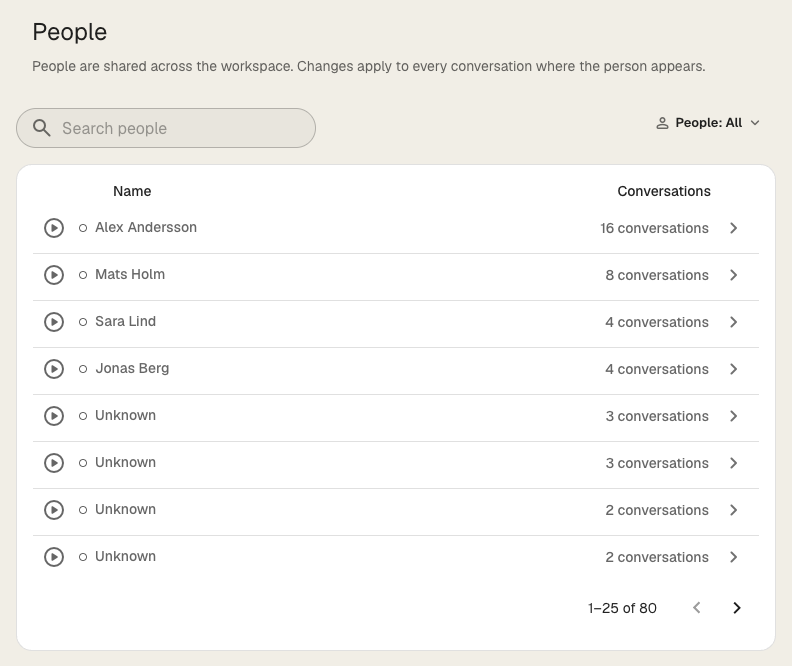
- To hear what someone sounds like, click the play button at the start of the row.
- To find someone, type a name in Search people.
- To show only some people, click People: All and choose Named or Unnamed.
The People page is only available when People is turned on for your workspace.
Name a person
- On the People page, click the person
- In the panel that opens, click the play button on the avatar to listen to the voice
- Under Details, type the name in Name
- Press Enter
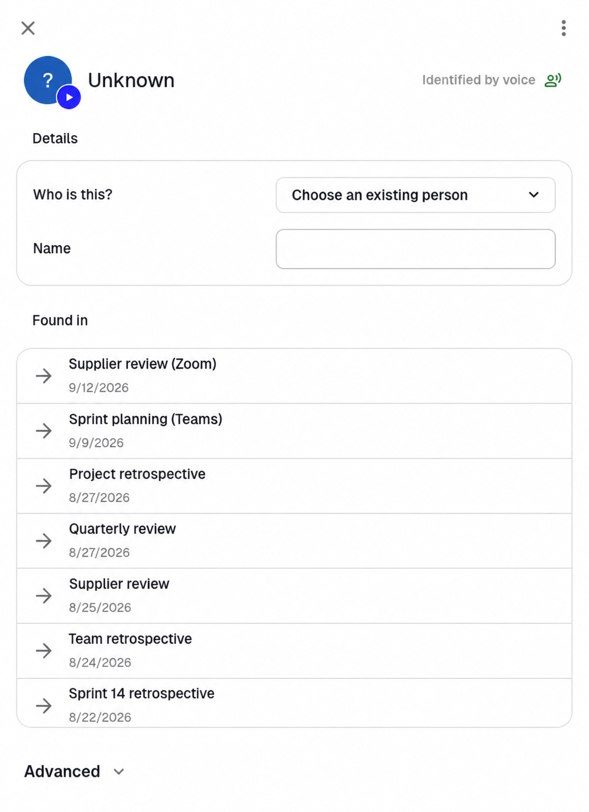
The new name shows up in every conversation where the person appears. To open one of those conversations, click it under Found in.
If someone else in the workspace already has that name, Klang asks whether it is the same person. Listen to the voice, then merge the two or keep them as different people.
People who are linked to a user account get their name from that account. You can’t rename them here.
Link a voice to someone you know
If the voice belongs to someone who already exists in the workspace, link it to that person instead of typing the name again.
- On the People page, click the person shown as Unknown
- Next to Who is this?, click Choose an existing person
- Listen to the voice, then choose the person from the list, or click Add a new person
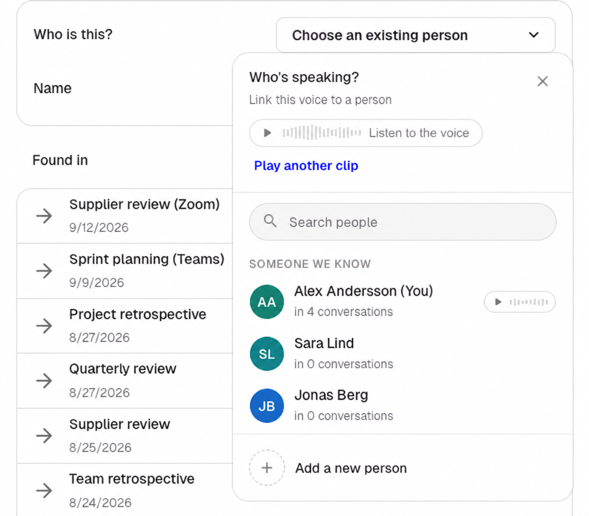
The voice becomes part of the chosen person, with all its conversations, and the panel closes.
Merge two people
Sometimes Klang lists the same person twice, for example when the audio quality differs a lot between meetings.
- On the People page, click one of the two people
- In the top-right corner of the panel, click more_vert and choose Merge
- Search for the other person and select them
- Listen to both voices to check that it is the same person, then click Merge
- If the two people have different names, choose the name to keep
Klang combines the two into one person, with all their conversations.
Remove a person
- On the People page, click the person
- Click Advanced
- Under Delete, choose one of the options:
- Not a person (for example, TV or music): Hides the voice everywhere. Klang never suggests it as a speaker again.
- Remove person: Removes the name from every conversation.
Removing a person can’t be undone. People who are linked to a user account in the workspace can’t be removed.
See how a person was identified
Under Advanced, the Activity list shows how the person got their name and which conversations they were linked to. For example, Matched by voice, Identified by the meeting bot, or Linked by email in the calendar invite. Use it when you want to understand why Klang named someone the way it did.
Was this article helpful?
Your feedback helps us improve our documentation.
Suggested Articles
Custom analysis templates
Preconfigure analyses with your own prompts, instructions, and knowledge sources.
Creating an analysis
Combine sources and use AI to extract insights, summaries, and answers.
Analyzing multiple files in one analysis
Combine several transcripts, documents, or recordings in the same analysis.
Need more help?
Our support team is here to help you.