Recognizing speakers across conversations
How Klang recognizes speakers and names them in new recordings.
When Speaker ID is on, Klang recognizes the people in your workspace. Once a speaker has a name, Klang can recognize them in new recordings and name them for you.
How recognition works
Klang always separates a recording into speakers. With Speaker ID turned on, it also checks each speaker against the people already named in your workspace.
- Strong match: Klang names the speaker automatically.
- Possible match: Klang suggests a name and asks you to confirm it.
- No match: The speaker stays unnamed until someone names them. If the same speaker keeps coming back, Klang asks who it is.
Names can also come from other places. When the Klang bot records a Google Meet, Microsoft Teams, or Zoom call, it picks up participant names from the meeting. Klang can also link a speaker to a calendar invite by email address or by a similar name.
Admins can turn Speaker ID on or off. See Turning People and Speaker ID on or off.
Tell Klang which speaker is you
Once Klang knows which speaker is you, it recognizes you in every conversation. When the same speakers show up across your own conversations, Klang asks which one is you.
- On the Home page, under Suggestions, click Is this you?
- Click the play button next to each voice to listen to it
- Next to your own voice, click Yes, that’s me
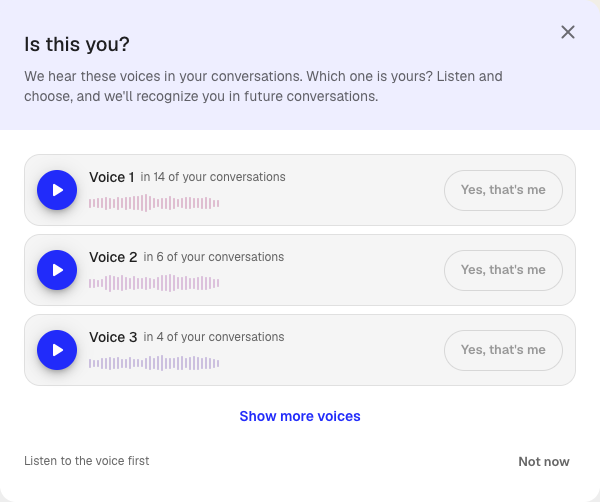
The Yes, that’s me button stays disabled until you have listened to that voice. If none of the voices are yours, click Show more voices. To answer later, click Not now.
Confirm suggested names
Klang asks about voices in the Conversation intelligence card of an analysis. Open an analysis that contains a transcription and look under Voices.

- Sounds like followed by a name: Listen to the voice, then accept or reject the suggestion.
- Heard in followed by a number of conversations: The voice keeps appearing but has no name. Click Identify speaker to name it.
When you name a speaker, the name applies to every conversation where that speaker appears. Always listen before you confirm. A wrong answer puts the wrong name on all of those conversations.
Fix a wrong name
If Klang names the wrong person, correct it in the transcript. Click the speaker name, then choose the right person. For the details, see Managing speakers in a transcript.
To rename a person everywhere at once, or to merge two people who turned out to be the same person, see Managing people in your workspace.
Was this article helpful?
Your feedback helps us improve our documentation.
Suggested Articles
Custom analysis templates
Preconfigure analyses with your own prompts, instructions, and knowledge sources.
Creating an analysis
Combine sources and use AI to extract insights, summaries, and answers.
Analyzing multiple files in one analysis
Combine several transcripts, documents, or recordings in the same analysis.
Need more help?
Our support team is here to help you.