Turning People and Speaker ID on or off
Admin controls for shared people and speaker recognition.
Workspace admins decide whether Klang shares named people across conversations and whether it recognizes speakers automatically. Both settings live at Settings → Workspace → General and apply to everyone in the workspace. Only admins can see them.
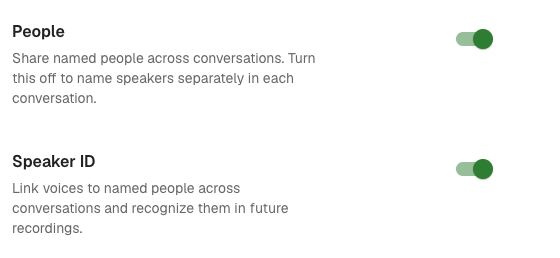
What each setting does
- People: Klang keeps one list of named people for the whole workspace. When someone names a speaker, the name follows that person into every conversation. With People off, speakers are named separately in each conversation.
- Speaker ID: Klang recognizes people in new recordings and names them for you, or suggests a name for you to confirm. Speaker ID only works while People is on.
Klang always separates the voices in a recording, whatever you choose here. These settings only control whether voices are linked to named people.
To see how recognition works for your members, see Recognizing speakers across conversations.
Turn off Speaker ID
- Go to Settings → Workspace → General
- Turn off Automatic speaker names
- Type DELETE and click Turn off and delete
Klang stops identifying speakers automatically and permanently deletes all data for automatic speaker names. Existing named and unnamed people remain available while People is on, and you can still name speakers yourself. When you turn automatic speaker names on again, Klang processes your saved recordings again.
Turn off People
- Go to Settings → Workspace → General
- Turn off People
- Type DELETE and click Turn off and delete
Klang permanently deletes all data for automatic speaker names and turns off both People and automatic speaker names. Speakers are named separately in each conversation. People and names are kept and come back when you turn People on again. Automatic speaker names stay off until you turn them on, and Klang then processes your saved recordings again.
Turn a setting back on
- Go to Settings → Workspace → General
- Turn on People or Automatic speaker names
Was this article helpful?
Your feedback helps us improve our documentation.
Suggested Articles
Need more help?
Our support team is here to help you.