
Connecting another SCIM service
Klang works with any provider that speaks SCIM 2.0, not only Entra and Okta.
Available on the Pro and Team plans.
Klang’s member sync is plain SCIM 2.0. Microsoft Entra and Okta have their own guides because their consoles differ, but nothing in Klang is specific to either. Any provider that can push SCIM 2.0 to a base URL with a bearer token will work, including OneLogin, JumpCloud, Ping and in-house scripts.
This article is the reference for everything else. If you use Entra or Okta, follow those guides instead.
Before you start
You need two things:
- In Klang: an admin on a Pro or Enterprise workspace
- In your provider: permission to create an application and configure provisioning
Get your credentials from Klang
- In Klang, open Settings → Workspace → Members → Member sync
- On the SCIM directory card, click Connect
- In the dialog that opens, choose the Another SCIM service tab
- Click Save to create the connection and show the URL and token
You get two values: a base URL and a bearer token. The token is shown once. Copy it before you close the dialog.
Send the token in the Authorization header of every request, in the form Authorization: Bearer <token>. There is no other credential, and there are no custom headers to set.
If Connection settings is shown, keep Create a new connection selected for a new setup. To reuse a connection, select a workspace you administer instead and click Save. No new token or provider setup is needed.
To review setup later, open More options (⋮) on the connection card and select Show setup. The URL and provider instructions remain available, but the saved token cannot be shown again. Close closes the guide without changing the connection.
What Klang supports
| Endpoint | Methods |
|---|---|
/ServiceProviderConfig, /ResourceTypes, /Schemas | GET |
/Users | GET, POST |
/Users/{id} | GET, PUT, PATCH, DELETE |
/Groups | GET, POST |
/Groups/{id} | GET, PUT, PATCH, DELETE |
PATCH is supported for both resources, including the pathless form some providers send. Group membership can arrive either as PATCH operations or as a full PUT replace. GET /ServiceProviderConfig advertises the same facts, so a provider that reads it before configuring itself will find them.
How Klang matches people and groups
- Users are matched on
userName, which Klang expects to be the person’s email address - Groups are matched on
displayName, or onexternalIdwhen your provider sends one - Your provider needs to support the
userName eq "..."filter, because that is how it discovers whether somebody already exists before creating them
Two things Klang deliberately does not do
Content is preserved. DELETE /Users/{id} or setting active to false removes the person’s synced access. It does not delete their content.
People cannot be listed. GET /Users without a filter answers with an empty result rather than your whole roster. Klang is not a source of truth for your directory, so it does not hand the list back. Filtered reads work normally, which is all a provider needs in order to provision. GET /Groups does list, because that is how providers match a group they are about to push against one that already exists.
Optional: Choose which groups to push
You can skip group provisioning when using All synced users. To select specific groups in Klang, send those groups and their memberships.
Klang only learns about the groups your provider actually sends. How you choose them depends on your provider: Entra calls it assigning groups to the application, Okta calls it Push Groups. Whatever it is called, the groups you push are the ones you will be able to pick from in Klang.
Choose members for this workspace
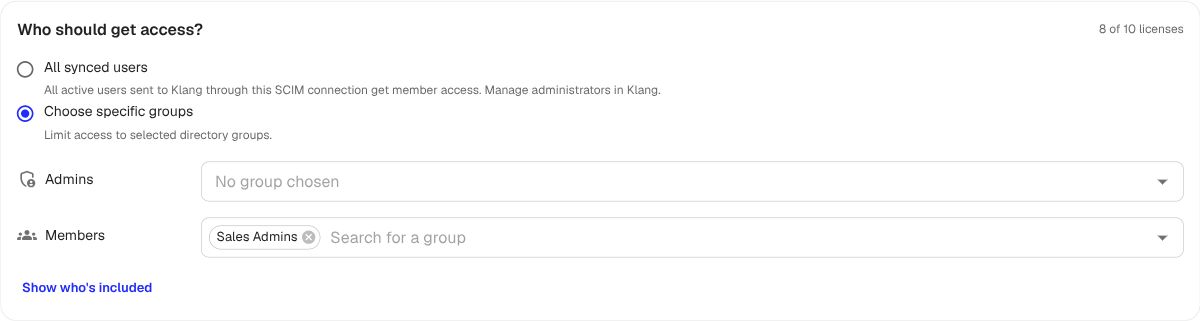
All synced users gives member access to every active user sent through this connection. Manage administrators in Klang. Your provider still determines which users are sent.
- Back in Member sync, find Who should get access?
- Choose All synced users or Choose specific groups. For specific groups, select which groups give Admin or Member access
- Click Show who’s included to review the people in your selection
- Review any additional seats, then click Save
Groups can overlap; each person is counted once per workspace. Nobody gets access from a new connection until you save a selection.
What happens from now on
- Active users included in your saved selection get access to this workspace
- Users who are deactivated or no longer included in your selection lose synced access. Their content stays
- Admin groups can promote members. Existing admins retain their role when they move to a member group
- People who have never signed in to Klang get an invitation by email
The connection card in Klang shows when your provider last called. If it says a provider name, that is the one Klang recognised from the request; otherwise it just says SCIM, which is normal for providers Klang has no logo for.
Rotating the token
On the connection card, open More options (⋮) and select Create new token. The old token stops working immediately, for every workspace sharing the connection. Paste the new one into your provider.
Disconnecting
Click More options (⋮) → Disconnect to stop syncing this workspace. Existing members keep their access and become manually managed; pending sync invitations are canceled. Other linked workspaces continue syncing. Disconnecting the last workspace also removes the shared connection and its token.
Was this article helpful?
Your feedback helps us improve our documentation.
Suggested Articles

Need more help?
Our support team is here to help you.