
Setting up SSO with SAML or OpenID Connect
Let members sign in to your workspace with your company identity provider.
Single sign-on lets members sign in to Klang with your company identity provider instead of an email code, Google, or Microsoft. Klang supports SAML 2.0 and OpenID Connect.
You need to be a workspace admin, and Klang has to enable SSO setup for your workspace first. If you do not see the section described below, contact Klang.
Add a connection
Open Settings → Workspace → Security and find Single sign-on (SSO).
- Click Add SSO connection
- Enter a Name. Members see this name on the sign-in button
- Choose the Protocol, either SAML 2.0 or OpenID Connect
- Copy the addresses Klang shows you into your identity provider
- Enter the details from your provider in the fields below them
- Under Workspaces, select the workspaces this connection should serve
- Click Save
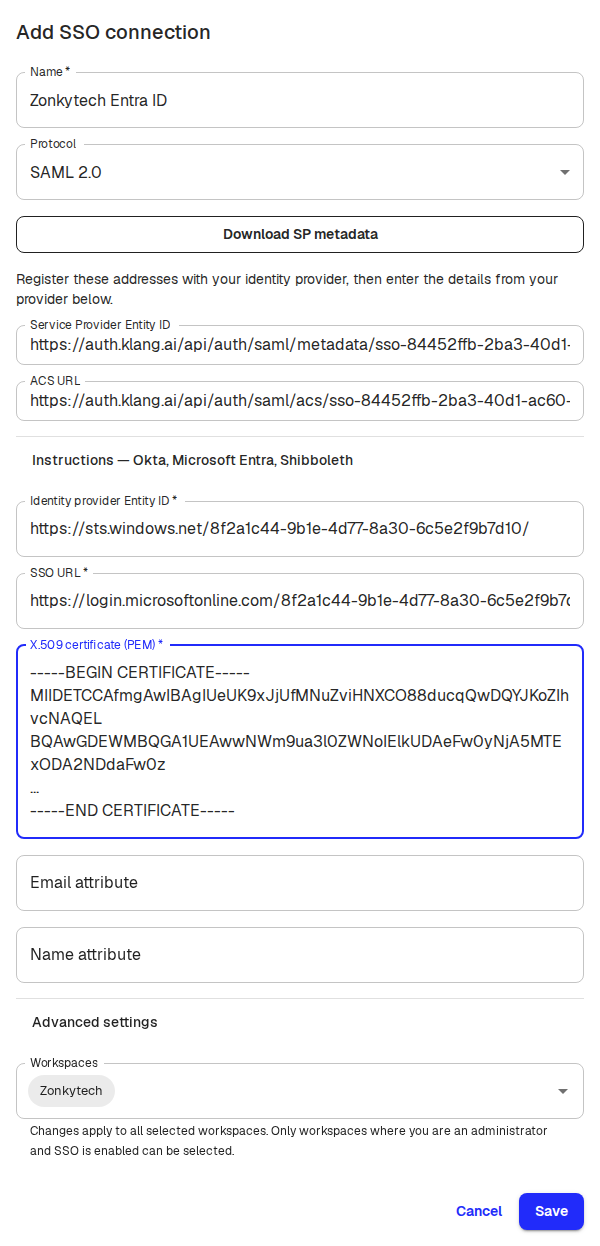
Klang reserves the addresses as soon as you open the dialog, so you can register them with your provider before you finish. The reservation lasts one hour. Nothing is created until you click Save, and Cancel leaves your settings unchanged.
What your identity provider needs
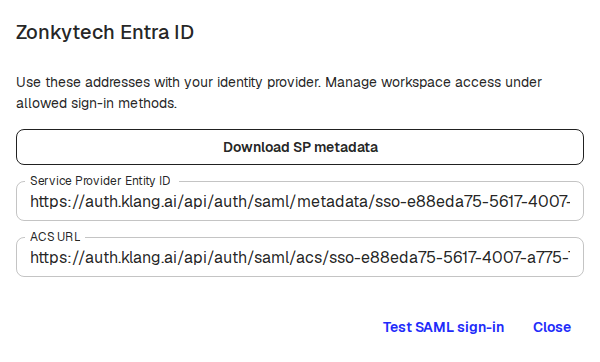
For SAML, register the Service Provider Entity ID and the ACS URL. Click Download SP metadata if your provider prefers a metadata file. Configure your provider to send a signed assertion, a stable NameID, and the user’s real email address. Under Advanced settings you can turn on signed authentication requests and encrypted assertions, set a NameID format, and add a second certificate while your provider rotates certificates. Encrypted assertions must use the RSA-OAEP key transport with MGF1 and SHA-1 (the XML Encryption 1.0 profile). The XML Encryption 1.1 RSA-OAEP profile is not supported, and sign-in fails with it.
For OpenID Connect, register the Redirect URI that Klang shows, then enter the issuer URL, client ID, and client secret from your provider.
You can reopen these addresses at any time from Connection details.
Test before you turn it on
For SAML, click Test SAML sign-in in Connection details. This checks the whole exchange with your provider without creating an account or changing anyone’s sign-in method, so it is safe to run before members depend on it.
Let members use it
Saving a connection does not switch anyone over. To make it available, go to Allowed sign-in methods, tick the connection, and click Save.
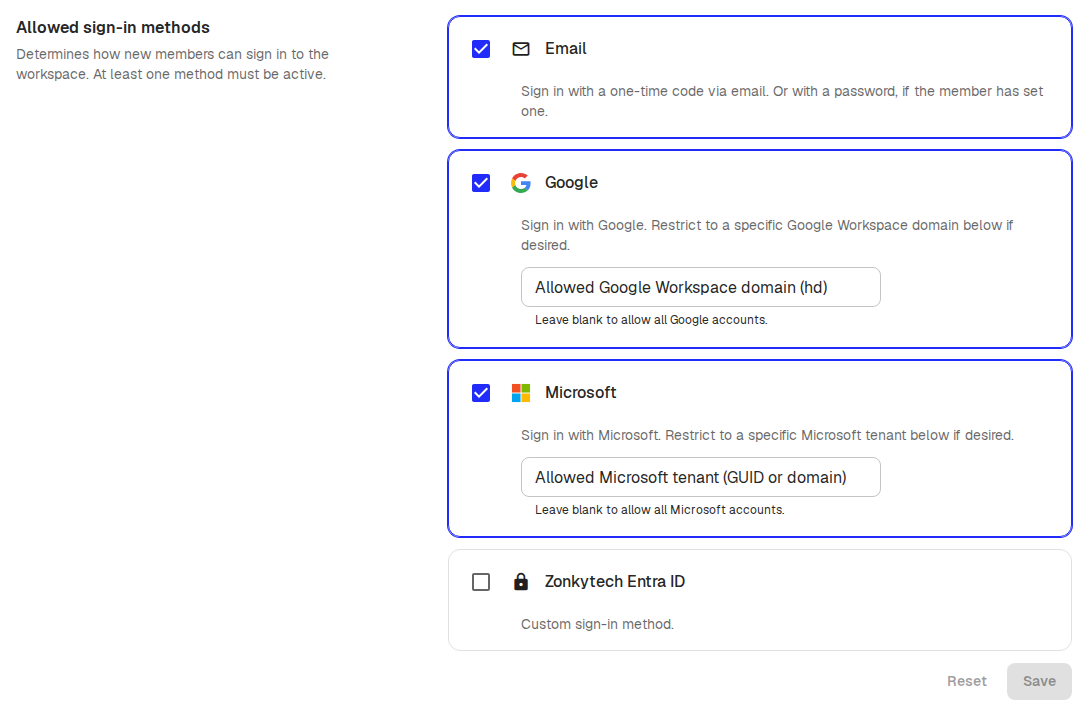
New members still need an invitation to the workspace. Klang does not create accounts from your directory automatically, and signing in through your provider does not verify a member’s email address for anything outside that workspace. Existing members keep their current sign-in method until they change it themselves under their own sign-in settings.
Good to know
- Changing allowed sign-in methods does not sign current members out
- Start sign-in from Klang. Opening Klang from a tile in your provider is not supported
- Single Logout and automatic member provisioning are not supported
- To disconnect a workspace, first remove the connection from that workspace’s allowed sign-in methods
Was this article helpful?
Your feedback helps us improve our documentation.
Suggested Articles

Need more help?
Our support team is here to help you.