
Connecting Microsoft Entra
Sync your directory and choose who can access each workspace.
Available on the Pro and Team plans.
Connect your Microsoft Entra directory to sync members into Klang. Choose all synced users or limit access to specific groups.
Klang can sync from Okta, Google Workspace or another SCIM service instead. Each workspace uses one provider at a time. A Microsoft connection can be shared by several workspaces.
Before you start
You need two things:
- In Klang: an admin on a Pro or Enterprise workspace
- In Microsoft Entra: permission to create an enterprise application and configure provisioning
Groups are optional. Plan groups if you want different people to have different access or roles.
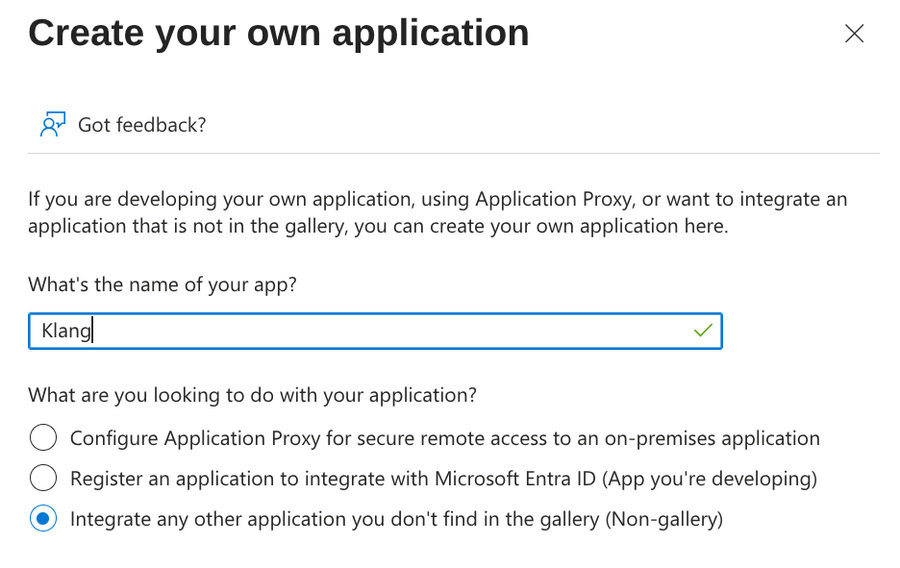
Create the application in Entra
- In the Microsoft Entra admin center, go to Enterprise applications
- Click New application, then Create your own application
- Name it
Klang - Select Integrate any other application you don’t find in the gallery (Non-gallery)
- Click Create
Get your credentials from Klang
- In Klang, open Settings → Workspace → Members → Member sync
- On the SCIM directory card, click Connect
- Choose the Microsoft Entra ID tab
- Click Save to create the connection and show the URL and token
Klang shows a Tenant URL and a token, along with the steps to follow in Entra.
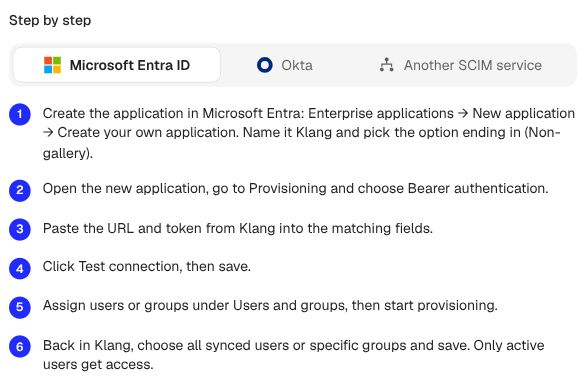
The token is shown once. Copy it before you close the dialog. If you lose it, click Create new token to make a new one, but note that the old one stops working immediately.
If Connection settings is shown, keep Create a new connection selected for a new setup. To reuse a connection, select a workspace you administer instead and click Save. No new token or provider setup is needed.
To review setup later, open More options (⋮) on the connection card and select Show setup. The URL and provider instructions remain available, but the saved token cannot be shown again. Close closes the guide without changing the connection.
Paste the credentials into Entra
- In your new Klang application, open Provisioning
- Click Connect your application
- Leave Select authentication method on Bearer authentication
- Paste the Klang values into Tenant URL and Secret token
- Click Test connection
- Click Create
If the test fails, check that you copied the whole token and that the Tenant URL has no trailing slash.
Choose which users and groups to sync
With Scope set to Sync only assigned users and groups, Entra sends the people assigned to the application. You can assign individual users or groups.
- In the Klang application, open Users and groups
- Click Add user/group and select the users or groups to provision
- Back in Provisioning, click Start provisioning
Microsoft runs the first sync on its own schedule, which can take up to 40 minutes. Later changes usually arrive within 40 minutes too.
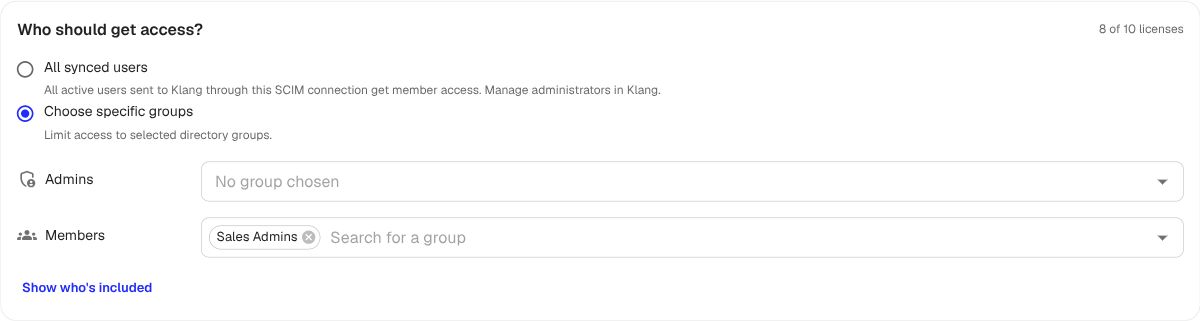
Choose members for this workspace
All synced users gives member access to every active user sent through this connection. Manage administrators in Klang. Your provider still determines which users are sent.
- In Member sync, find Who should get access?
- Choose All synced users or Choose specific groups. For specific groups, select which groups give Admin or Member access
- Click Show who’s included to review the people in your selection
- Review any additional seats, then click Save
Groups can overlap; each person is counted once per workspace. Nobody gets access from a new connection until you save a selection.
Use the connection in another workspace
- Switch to another workspace you administer
- Open Settings → Workspace → Members → Member sync
- On the SCIM directory card, click Connect
- Select the workspace whose Microsoft connection you want to reuse
- Click Save to use this connection
- Choose who should get access and save the selection
You need to administer both workspaces when linking them. The connection is shared, so Microsoft only needs to be configured once. The same group can grant different roles in different workspaces. Sync continues if the person who connected it later loses admin access.
What happens from now on
- Active users included in your saved selection get access to this workspace
- Users who are deactivated or no longer included in your selection lose synced access. Their content stays
- Admin groups can promote members. Existing admins retain their role when they move to a member group
- People who have never signed in to Klang get an invitation by email
You keep managing people in Entra. Klang follows.
Rotating the token
On the connection card, open More options (⋮) and select Create new token. Any admin of a linked workspace can do this. The confirmation names all affected workspaces: the old token stops working for all of them.
In your existing Klang application in Entra, open Provisioning → Connectivity. Paste the new token into Secret token. Click Test connection, then Save to resume sync.
Disconnecting
Click More options (⋮) → Disconnect to stop syncing this workspace. Existing members keep their access and become manually managed; pending sync invitations are canceled. Other linked workspaces continue syncing. Disconnecting the last workspace also removes the shared connection and its token.
Was this article helpful?
Your feedback helps us improve our documentation.
Suggested Articles

Need more help?
Our support team is here to help you.