Viewing workspace statistics
See who uses Klang in your workspace and how much is recorded.
The Statistics page shows how your workspace uses Klang: who is active, how much is recorded, and how far features such as AI chat have spread. Use it to see who may need help getting started.
Who can see it
Only workspace admins can open the page. The numbers are included in the Business and Enterprise plans. On other plans, the page shows a blurred example with Statistics are included in Business and a button to Upgrade to Business. To compare plans, read Plans and limits.
Open the statistics
- Open Settings → Workspace → Statistics
- Optional: In the top-right corner, choose a period: 30 days, 90 days, or 12 months
All numbers on the page follow the period you choose.
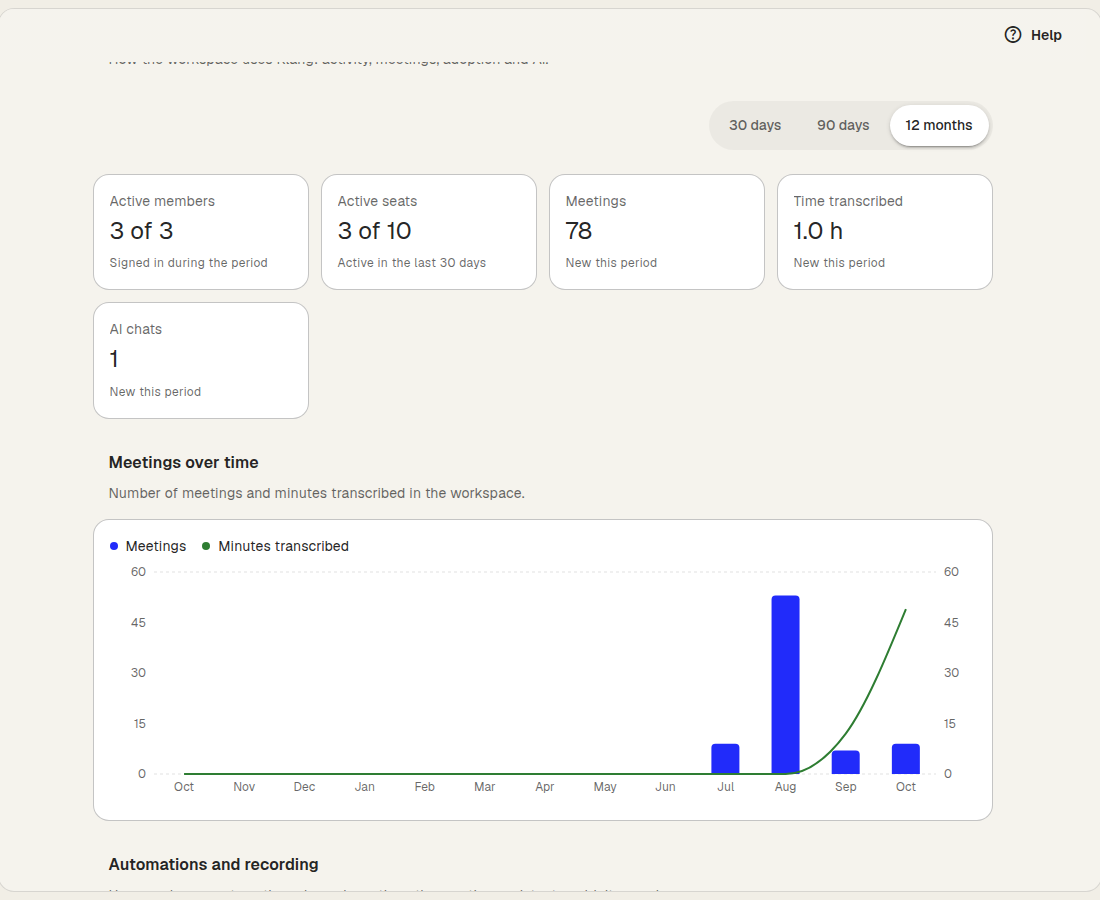
Key figures
The row at the top shows:
- Active members: how many members signed in during the period, out of all members
- Active seats: how many of your paid seats were used in the last 30 days, whatever period you choose. If you manage your plan in Klang, the link Change seats takes you to your subscription
- Meetings: how many meetings were added
- Time transcribed: the total length of transcribed meetings
- AI chats: how many chats members had with the AI
Most figures also show the change compared with the previous period of the same length.
Meetings over time
Meetings over time is a chart of the number of meetings and the minutes transcribed. For 30 days it shows one bar per day, for longer periods one per week or month.
Automations and recording
This section shows:
- Automation runs: how many times your automations ran, and how many automations are active
- Meetings not recorded: meetings the meeting assistant could not record. Usually the meeting assistant was not let in from the lobby
Usage
Usage shows how many members use Klang’s most important features:
- Has recorded or uploaded
- Has connected their calendar
- Has chatted with the AI
- Uses the mobile app
Members
The Members table shows what each person did during the period: when they were Last active, and their Meetings, Minutes, Analyses, and AI chats. Members with nothing in the period are marked No activity this period. They may need a helping hand.
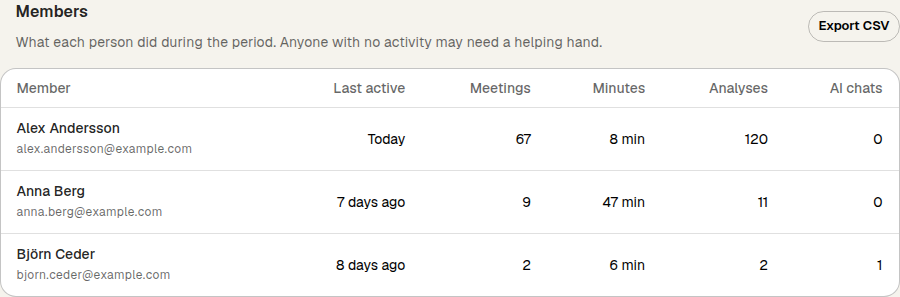
Export the member list
To work with the numbers in a spreadsheet, click Export CSV next to the Members heading. The file has one row per member, for the period you chose, including their email address and whether they have connected a calendar and use the mobile app.
Was this article helpful?
Your feedback helps us improve our documentation.
Suggested Articles
Reviewing the audit log
See who changed members, seats, sign-in rules, and agreements.
Cancelling your subscription
Cancel your Pro or Business subscription in Klang, and undo it if you change your mind.
Changing your plan or billing interval
Switch between Pro and Business, or between monthly and yearly billing.
Need more help?
Our support team is here to help you.