
Connecting Google Workspace
Let your Google groups decide who has access to your workspaces.
Available on the Pro and Team plans.
Connect your Google Workspace directory and let your Google groups control who has access to your Klang workspaces. New colleagues get access when they join a group, and lose it when they leave one. No manual invitations.
Klang can sync from Microsoft Entra, Okta or another SCIM service instead. Each workspace uses one provider at a time.
Before you start
You need two things:
- In Klang: an admin on a Pro or Enterprise workspace
- In Google: a Google Workspace super administrator account. Klang reads your directory using that person’s approval, so the account has to be able to see all users and groups.
A personal Gmail account cannot be used, because the directory only exists on a Workspace domain.
Connect
- In Klang, open Settings → Workspace → Members → Member sync
- On the Google Workspace card, click Connect
- Sign in with your Google Workspace administrator account and approve the access Klang asks for
Klang asks for three read-only permissions: read users, read groups, and read group members. It never writes anything back to your directory.
You come straight back to Klang, and your groups are listed within a few seconds.
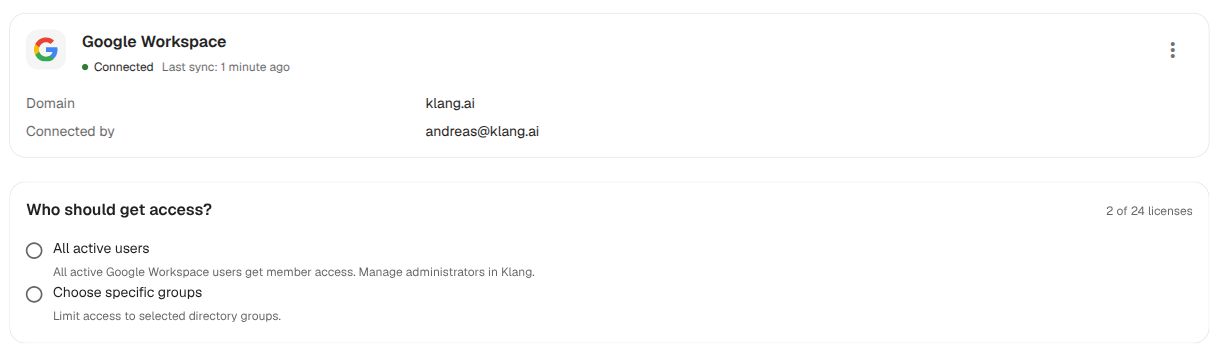
Choose who gets access
Two ways, on the same card:
All active users. Everyone with an active Google Workspace account becomes a member of this workspace. Suspended and archived accounts are left out. Administrators stay something you set in Klang. The whole-company option only ever grants member access.
Choose specific groups. Pick which Google groups grant Admin and which grant Member access to this workspace. Nested groups are followed, so a group containing other groups brings in everyone inside them.
Click Show who’s included to review the people your selection covers before you commit, then check the licences it needs and click Save.
Groups can overlap; each person is counted once per workspace. Nobody gets access from a new connection until you save a selection.
What happens from now on
Google has no way to tell us when something changes, so Klang re-reads your directory every 15 minutes. You can also click More options (⋮) → Sync now on the connection card.
- Someone added to a group in Google gets access to the matching workspace at the next sync
- Someone removed from every connected group is deactivated in Klang. Their content stays, and they get access back if they return to a group
- Someone suspended or archived in Google loses access the same way
- Admin groups can promote members. Existing admins keep their role when they move to a member group
- People who have never signed in to Klang get an invitation by email
You keep managing people in Google. Klang follows.
If sync stops
The card tells you which of the two things has happened.
Sync failed. A temporary problem: a rate limit, a network hiccup. Members keep their access. Click Try again; if it keeps failing, reconnect.
Needs reconnecting. Klang can no longer reach your directory at all. This almost always means the administrator who approved Klang has left, or their permission was withdrawn. The approval belongs to that person, not to the domain. Members keep their access until you reconnect. Click Reconnect and approve again with a current super administrator.
Disconnecting
Click More options (⋮) → Disconnect to stop syncing this workspace. Existing members keep their access and become manually managed; pending sync invitations are canceled. Other workspaces sharing the connection continue syncing. Klang revokes access to your Google directory only when the last workspace disconnects. Connecting again after that requires an administrator to approve Klang again.
Was this article helpful?
Your feedback helps us improve our documentation.
Suggested Articles
Need more help?
Our support team is here to help you.