Reviewing the audit log
See who changed members, seats, sign-in rules, and agreements.
The audit log lists the changes made to your workspace’s members, seats, sign-in rules, and agreements, with the most recent first. Use it to see who did what, and when.
Who can see it
Only workspace admins can open the audit log. It is included in the Business and Enterprise plans. On other plans, the page shows a blurred example with The audit log is included in Business and a button to Upgrade to Business. To compare plans, read Plans and limits.
Open the audit log
Open Settings → Workspace → Audit log.
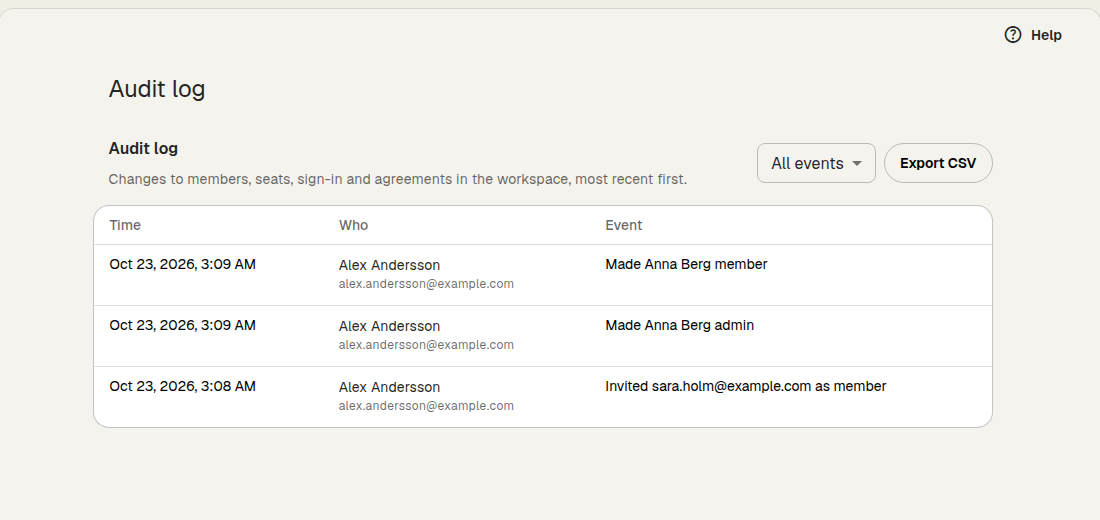
Each row shows the Time, Who made the change, and the Event. Changes that Klang makes itself, for example deleting a former member’s folders after 30 days, show Klang as the person. If the person’s account has since been deleted, the row shows Deleted user. To load older events, scroll down and click Show more.
What is logged
- Members: removing, deactivating, and reactivating members, role changes, and what happened to a former member’s private folders (handed over, or deleted 30 days after the removal)
- Invitations: single invitations, with the email address and role, and bulk invitations
- Seats: changes to the number of seats
- Security and sign-in: allowed sign-in methods, requiring two-factor authentication, how long a sign-in lasts, a member’s two-factor being turned off, single sign-on (SSO) connections, domains, and changes to member sync with your directory
- DPA: accepting or signing the data processing agreement
The log shows only the details an admin needs, such as names, email addresses, and the new value. It never shows passwords or keys.
Filter the events
- Above the list, click the filter menu. It shows All events until you change it
- Choose All events, Members, Invitations, Seats, Security and sign-in, or DPA
The list updates to show only that type of event.
Export the log
Click Export CSV to download the log as a spreadsheet file. The export follows the filter you chose. It includes the time, the event, who made the change, who it affected, and the details.
A very long log is cut off at the newest 10,000 events, and the last line of the file says so. Older events are not in the export.
Was this article helpful?
Your feedback helps us improve our documentation.
Suggested Articles
Cancelling your subscription
Cancel your Pro or Business subscription in Klang, and undo it if you change your mind.
Changing your plan or billing interval
Switch between Pro and Business, or between monthly and yearly billing.
Changing your sign-in method
Switch between email, Google, Microsoft, or change your password.
Need more help?
Our support team is here to help you.