Verifying your company domain
Stop colleagues from creating Klang accounts outside your workspace.
Verify your company’s email domain so that colleagues cannot create their own Klang accounts outside your workspace. After verification, anyone who tries to sign up with an address on the domain is asked to request an invitation from you instead.
Before you start
- You need to be a workspace admin on the Business or Enterprise plan. On other plans, the section shows Domain verification is included in Business with a button to Upgrade to Business. To compare plans, read Plans and limits
- You need access to your domain’s DNS settings, or someone in your IT team who has it
- Public email domains, such as gmail.com, cannot be used
Add and verify a domain
- Open Settings → Workspace → Security and scroll to Domains
- In the Domain field, enter your domain, for example
example.com - Click Add domain. The domain shows as Awaiting verification, with a TXT record below it
- Copy the TXT record. It starts with
klang-verification= - In your DNS provider, add a TXT record with that value on the domain itself (often written as
@) - Back in Klang, click Verify next to the domain
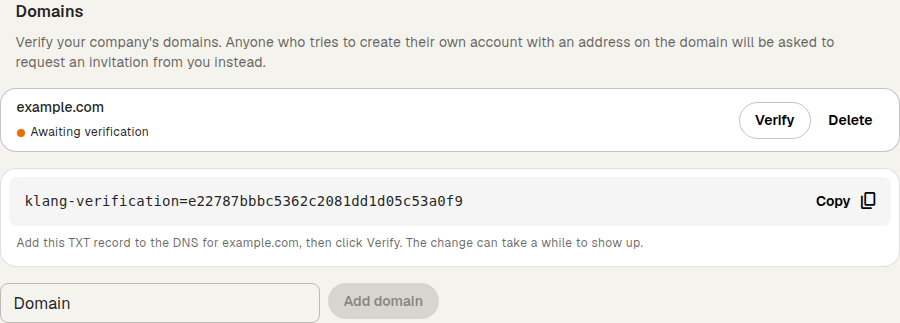
When Klang finds the record, the domain shows as Verified. If Klang cannot find the record yet, wait a while and click Verify again. DNS changes can take some time to show up.
One verified domain also covers its subdomains. Verifying example.com also covers addresses such as name@eu.example.com.
What changes after verification
Someone who tries to create a new Klang account with an address on the domain sees a message that their organisation uses Klang, and that they should ask their Klang admin for an invitation. The message does not name your workspace.
These are not affected:
- Invitations: people you invite can still create their account and join
- Directory sync: members added from your directory still get their accounts
- Existing users: people who already have a Klang account can still sign in
To add people, invite them from Settings → Workspace → Members. Read Inviting your team to a workspace.
Keep the TXT record in place
Klang checks the record again from time to time. If the record is missing for two weeks, the domain is no longer verified, sign-ups from it are open again, and every workspace admin gets an email. To verify again, add the record back and click Verify.
Remove a domain
- In the Domains section, click Delete next to the domain
- Click Remove domain to confirm
Anyone with an address on the domain can then create their own Klang account again.
If the domain is already taken
Only one workspace can verify a domain. If another workspace verified it first, Klang shows The domain is already registered in Klang. Contact support if the domain belongs to you.
You can have a limited number of domains waiting for verification at the same time. If you reach the limit, verify or remove one of them first.
Was this article helpful?
Your feedback helps us improve our documentation.
Suggested Articles
Reviewing the audit log
See who changed members, seats, sign-in rules, and agreements.
Cancelling your subscription
Cancel your Pro or Business subscription in Klang, and undo it if you change your mind.
Changing your plan or billing interval
Switch between Pro and Business, or between monthly and yearly billing.
Need more help?
Our support team is here to help you.