Removing a member from your workspace
Remove a member and decide what happens to their private folders.
When someone leaves your company, remove them from the workspace. On Business and Enterprise, you can also hand their private folders to a colleague so their work is not lost.
Remove a member
- Open Settings → Workspace → Members
- Find the member in the list and click the ⋮ menu on their row
- Click Delete user
- Review the dialog. On some plans it asks what should happen to the member’s private folders and seat (see below)
- Click Delete user to confirm
The person loses access to the workspace right away. Everything in shared projects stays for everyone else.
Private folders
Private folders are folders that only the leaving member can reach: their own folder and projects where nobody else is a member. If the member has any, the dialog says how many items they hold.
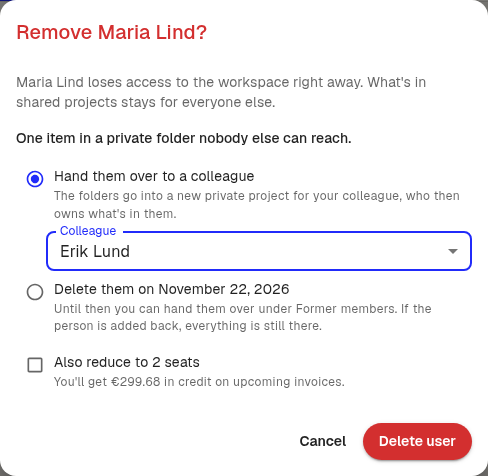
On Business and Enterprise, choose one option:
- Hand them over to a colleague: choose the colleague under Colleague. The folders go into a new private project for the colleague, who then owns what is in them
- Delete them on a date (Business): the folders are deleted 30 days after the removal. Until then, you can still hand them over
- Leave them (Enterprise): nobody can reach the folders, but they are kept. You can hand them over later
On Free and Pro, the folders stay, but nobody can open them. To compare plans, read Plans and limits.
Before folders are deleted
On Business, every workspace admin gets an email a few days before a former member’s folders are deleted. The email has a button to hand the folders over.
Former members
Former members who still have private folders are listed under Former members with data, at the bottom of the Members page. This includes members who were deactivated. Each row shows when the person was removed and when their folders will be deleted, if a date is set.

To hand the folders over later:
- Click Hand over next to the person
- Choose the colleague
- Click Hand over
Adding someone back
If you invite the person again before their folders are deleted, the deletion is called off. They get their folders back as they were.
Give the seat back
If your plan has a set number of seats, the dialog also offers Also reduce to a lower number of seats. Tick it to remove the seat from your subscription at the same time. The dialog shows the credit you get on upcoming invoices.
If you leave the box unticked, the seat stays free for someone new. To change seats later, read Managing subscription seats.
Good to know
- You cannot remove yourself
- If your members come from a connected directory, remove them in the directory instead
- To pause someone’s access without removing them, click Disable user in the same menu
Was this article helpful?
Your feedback helps us improve our documentation.
Suggested Articles
Reviewing the audit log
See who changed members, seats, sign-in rules, and agreements.
Cancelling your subscription
Cancel your Pro or Business subscription in Klang, and undo it if you change your mind.
Changing your plan or billing interval
Switch between Pro and Business, or between monthly and yearly billing.
Need more help?
Our support team is here to help you.