Signing the data processing agreement
Sign Klang's data processing agreement for your company in Klang.
The data processing agreement (DPA) describes how Klang processes personal data on your company’s behalf. Learn how to read it, sign it for your company, and download the signed copy.
Who can sign
The DPA page is in the workspace settings, so you need to be a workspace admin to open it. Admins on every plan can read and download the agreement. To sign it, your workspace needs the Business or Enterprise plan. To see which plans include the DPA, read Plans and limits.
On other plans, the page shows The DPA is included in Business with a button to Upgrade to Business.
Read the agreement
- Open Settings → Workspace → DPA
- Under The agreement, click Download PDF
The agreement is in English. The same agreement applies to every self-service customer.
Sign the agreement
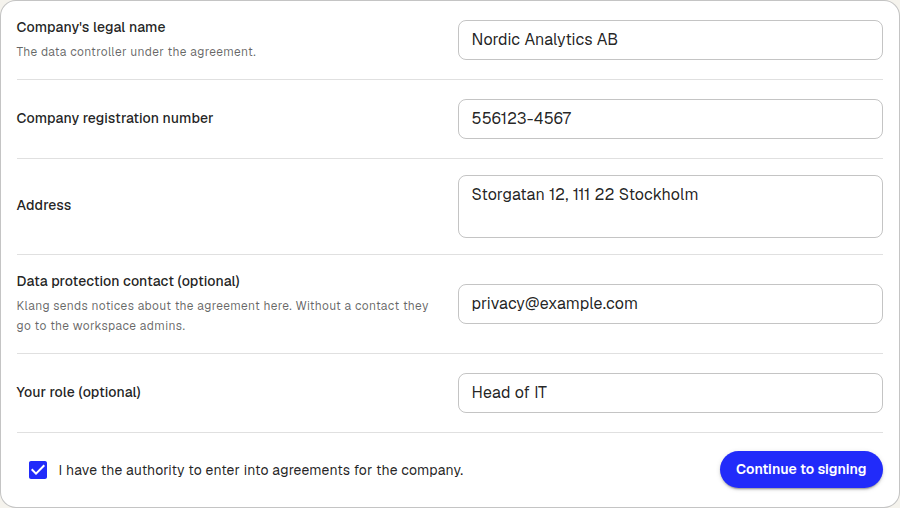
You need these company details:
- Company’s legal name: the data controller under the agreement
- Company registration number
- Address
- Data protection contact (optional): Klang sends notices about the agreement to this email address. Without a contact, notices go to the workspace admins
- Your role (optional): for example CEO or data protection officer
To sign:
- Open Settings → Workspace → DPA
- Under Sign the agreement, enter the company details
- Tick I have the authority to enter into agreements for the company.
- Click Continue to signing
- Sign the agreement in the dialog that opens
When you have signed, the dialog shows The agreement is signed. It can take a moment before the signed agreement shows up in the list. The agreement applies from the day you sign it.
If you close the tab right after signing, Klang still records the signature. It appears the next time you open the page.
If e-signature is not available
Some installations of Klang do not offer e-signature. You then accept the agreement on the page instead:
- Enter the company details
- Tick I am authorised to enter into agreements for the company and I accept the agreement.
- Click Accept the agreement
Klang saves a receipt of your acceptance.
Download the signed agreement
After signing, every version you have signed is listed under Signed versions, with who signed it and when. Each row has two downloads:
- Signed agreement: the agreement with your signature
- Audit trail: the record of the signing
If you accepted the agreement on the page instead, the list is called Accepted versions, and each row has Contract and Receipt.

Change the details or sign a new version
To update the company details, click Change details and sign again. When Klang publishes a new version of the agreement, the form appears again so you can sign it.
Earlier versions stay in the list, so you can always download the agreement you signed at the time.
Was this article helpful?
Your feedback helps us improve our documentation.
Suggested Articles
Reviewing the audit log
See who changed members, seats, sign-in rules, and agreements.
Cancelling your subscription
Cancel your Pro or Business subscription in Klang, and undo it if you change your mind.
Changing your plan or billing interval
Switch between Pro and Business, or between monthly and yearly billing.
Need more help?
Our support team is here to help you.